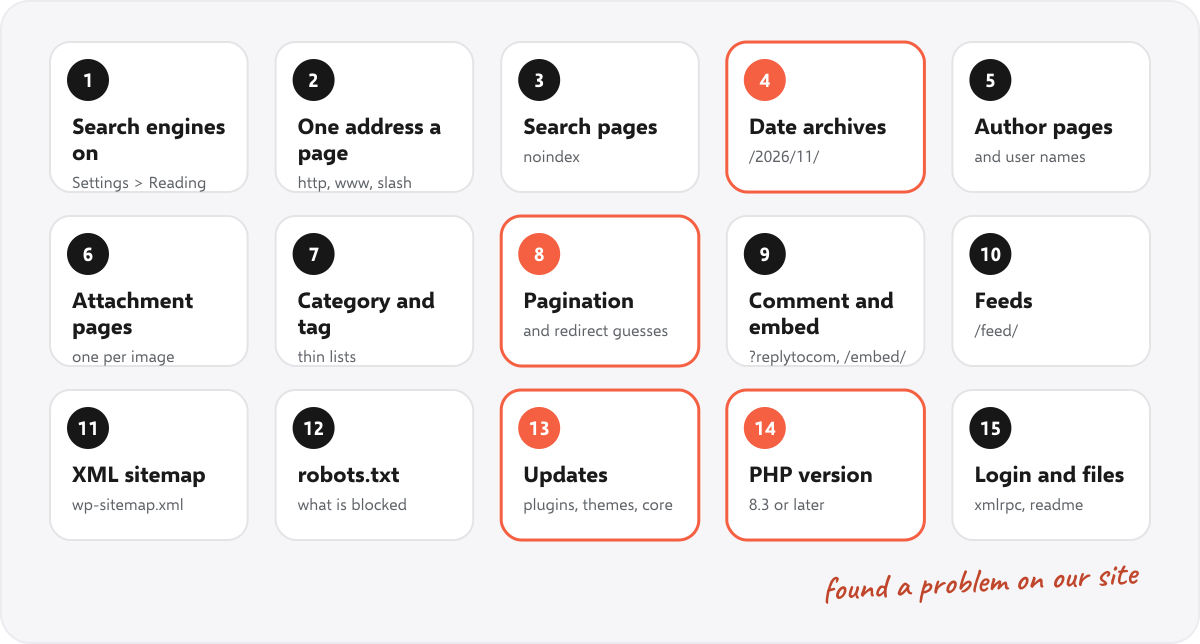
A WordPress SEO audit is a check of the parts of a WordPress site that affect how Google finds, reads and ranks it. Beyond the usual audit (titles, links, speed), WordPress adds its own risks: pages it creates on its own, such as date and author archives, settings that can hide the whole site, and plugins and PHP versions that fall out of date. Below are 15 checks with the exact addresses to test, and what happened when we ran all of them on our own WordPress site.
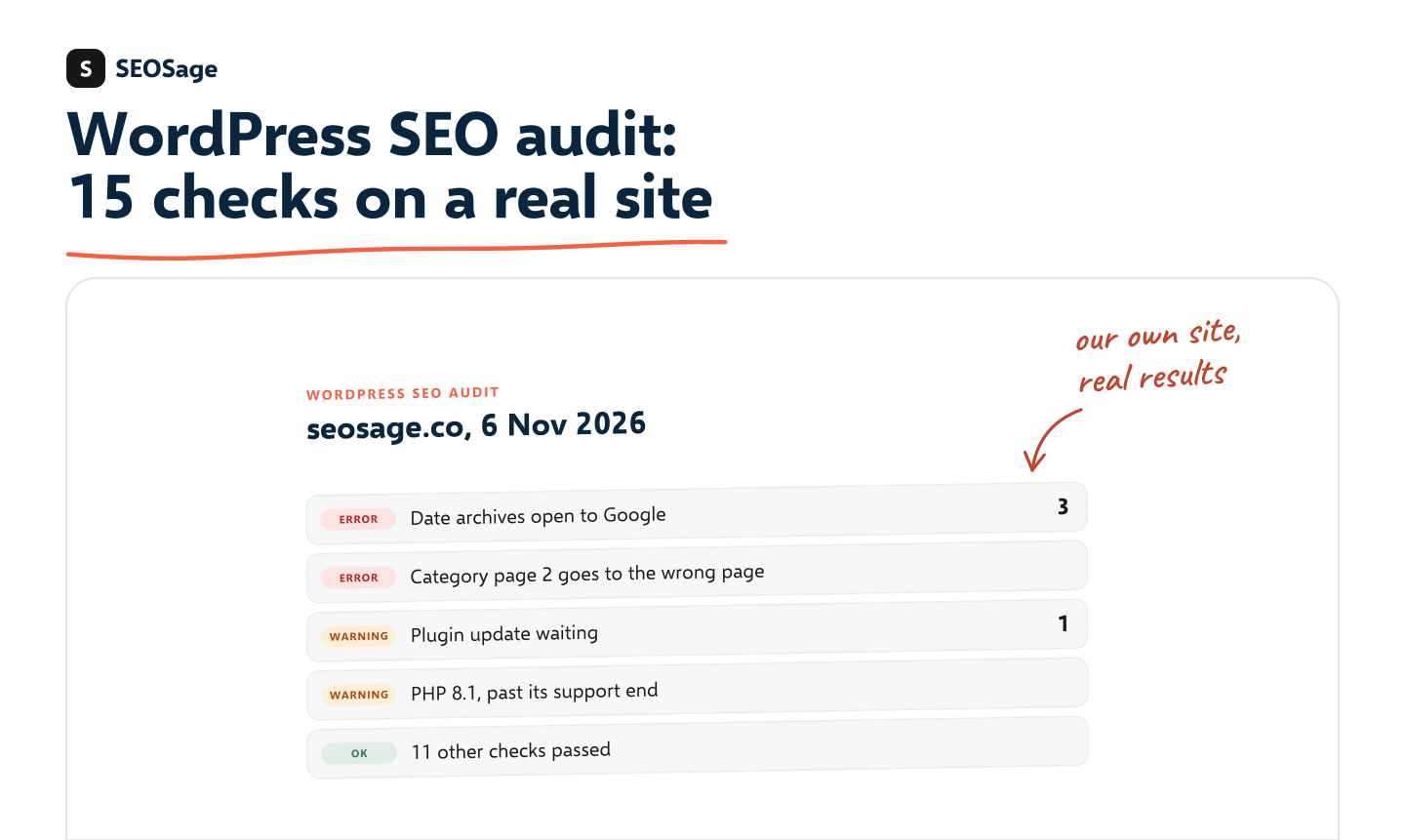
It is written by the maker of SEOSage, an SEO audit app. seosage.co runs on WordPress 7.1.4 with a GeneratePress child theme and one plugin. We tested 31 WordPress addresses and settings on 6 November 2026, fixed what we found the same morning, and timed each fix.
TL;DR
- WordPress makes extra pages on its own: date archives, author pages, attachment pages, search results, comment and embed versions of each post. Check that each one is either useful or kept out of Google.
- Test real addresses, not settings screens: open
/2026/,/?s=test,/?author=1and the others in the table below, and look at the status, the canonical and the robots tag.- On our own site, 11 of 15 checks passed. Date archives were open to Google, a category’s page 2 redirected to an unrelated page, a plugin update was waiting, and PHP was out of date.
- Three fixes took 1.7 minutes in total. The PHP version needs the hosting server changed.
This guide is part of our series on how to do an SEO audit. Keep your findings in the free SEO audit template.
What is a WordPress SEO audit? #
An SEO audit lists the problems that stop a website from being found, indexed or ranked, and puts them in the order to fix them. A WordPress SEO audit does the same, with extra checks for the pages and settings that WordPress adds on its own. Those extra pages are the part most audits skip, because a crawler only finds them if something links to them, while Google can still find them through feeds, sitemaps and old links.
For the general checks every site needs (titles, descriptions, headings, broken links, speed), use our technical SEO audit checklist and the on-page SEO checklist. This guide covers what is different about WordPress.
Before you start #
- Know what to look at on each address: the HTTP status (200, 301, 404), where it redirects to, the canonical tag, and the robots meta tag or X-Robots-Tag header. Our free noindex checker shows the robots tag and the canonical for any address, and the redirect chain checker shows every hop.
- Use your real addresses. Replace
example.com, the year and the post names below with your own. - Write down what you change and when, so you can see in Google Search Console 4 weeks later whether it made a difference.
The 15 WordPress SEO checks #
1. Search engines are allowed #
Test: in the WordPress dashboard, open Settings, then Reading, and look at “Search engine visibility”. The box “Discourage search engines from indexing this site” must be unticked on a live site.
Why: it is ticked on many staging sites and sometimes stays ticked after launch. It adds a noindex tag to every page.
Our site: passed (unticked).
2. Each page has one address #
Test: open these and check that each one redirects with a 301 to the same final address: http://example.com/, https://www.example.com/, a post without its last slash, and /?p=123 (the post’s ID). An address in capital letters should either redirect or have a canonical pointing at the lower-case one.
Why: two addresses for one page split its links and confuse Google about which to show. Google explains how to pick one address with redirects and canonical tags.
Our site: passed. http, www, the missing slash and /?p=275 all redirect to the real address. A capital-letter address loads, but its canonical points to the lower-case one.
3. Search results pages are kept out of Google #
Test: open /?s=test and /search/test/. Both should have a noindex robots tag.
Why: anyone can make endless search pages by typing words into the address. WordPress adds noindex to them on its own, but some themes and plugins remove it.
Our site: passed (noindex, follow).
4. Date archives are not open to Google #
Test: open /2026/, /2026/11/ and /2026/11/06/ (use a year, month and day you published something). Look at the robots tag and the canonical.
Why: WordPress makes an archive for every year, month and day that has a post. Each one repeats posts already listed on your blog page, so they add thin, duplicate pages. Unless your readers browse by date, keep them out of search with noindex, or redirect them to the blog.
Our site: failed. All three levels loaded as normal pages with no noindex tag and no canonical. Fix: we added date archives to the theme’s list of pages with a noindex tag (one line in functions.php). SEO plugins such as Yoast and Rank Math have a setting for this instead.
5. Author pages and user names #
Test: open /author/your-user-name/, /?author=1 and /wp-json/wp/v2/users.
Why: on a site with one author, the author archive is a copy of the blog list. /?author=1 usually redirects to the first user’s author page, whose address often is their login name, and the users address of the WordPress REST API can list user names. Neither helps search, and both help people trying to guess logins. Keep author pages only if you have several writers, and then give each one a real bio.
Our site: passed. Author pages return 404, /?author=1 redirects to our About page, and the users address returns 404.
6. Attachment pages #
Test: open an image’s own page (in the Media Library, click an image and use “View attachment page”, or add ?attachment_id= and its ID to your home address).
Why: older WordPress sites made a separate page for every uploaded image, with almost nothing on it. WordPress 6.4 turned these pages off for new sites, but sites made before that may still have them. They should redirect to the image or to the post it is in.
Our site: passed (no attachments; our images live in the theme).
7. Category and tag archives #
Test: open a category page and a tag page. Each should have its own title, a short description, and a canonical to itself. Count how many tags have only one or two posts.
Why: categories that group real topics are useful pages. Tags used once each make hundreds of near-empty pages. Merge or delete the thin ones, or set tag archives to noindex.
Our site: passed. 4 categories, each with its own title, description and canonical. No tags.
8. Pagination and WordPress’s redirect guessing #
Test: open page 2 of your blog and of a category (/blog/page/2/, /category/name/page/2/). Each should load with a canonical to itself. Then type an address that does not exist, such as /a-made-up-page/, and see where it ends up.
Why: when an address does not exist, WordPress tries to guess the page you meant and redirects there. The guess is often wrong, and a wrong redirect sends visitors and Google to an unrelated page instead of a clear 404.
Our site: failed. Our posts sit under their category, so /seo-audit/ works as a short address for the SEO audit category. But /seo-audit/page/2/ did not exist, and WordPress guessed and redirected it to our page audit feature page, which has nothing to do with it. Fix: a short rule in the theme now sends /category-name/page/2/ to the category’s real page 2. WordPress still guesses for addresses that are fully made up. Turning the guessing off for the whole site could break old links that rely on it, so we left that and will watch the 404s instead.
9. Comment and embed versions of posts #
Test: add ?replytocom=1 to a post address, and add embed/ to the end of a post address. Both should have noindex or a canonical to the post.
Why: every “Reply” link on a comment makes a new address for the same post, and every post has an /embed/ version for other sites to show it. Without noindex or a canonical, they are duplicates.
Our site: passed. Both have noindex and a canonical to the post.
10. Feeds #
Test: open /feed/. It should load as RSS, list your latest posts, and link to the real post addresses.
Why: feeds are normal and useful: readers and Google use them to find new posts. Google does not show them as pages. Problems are a broken feed, or a feed that lists drafts or test posts.
Our site: passed.
11. The XML sitemap #
Test: open /wp-sitemap.xml (WordPress’s own sitemap) or your SEO plugin’s sitemap. Check that it lists your posts and pages, does not list users, tags or other thin pages, and that every address in it returns 200 with no redirect. Check it in Search Console’s Sitemaps report too.
Why: a sitemap is the list you hand Google. Addresses that redirect, 404 or are noindex send mixed signals. Our free sitemap checker tests a sample.
Our site: passed. The index lists the blog, pages, features, tools, guides, legal pages, web stories and videos. The users sitemap returns 404. One more thing we saw: the article we published the same day appeared in the sitemap only after we cleared the cache, so clear the cache after you publish.
12. robots.txt #
Test: open /robots.txt. WordPress’s usual rules block /wp-admin/ but allow /wp-admin/admin-ajax.php, and list the sitemap. Make sure it does not block /wp-content/ or /wp-includes/, which hold the CSS and JavaScript Google needs to see the page.
Why: one wrong line can stop Google from crawling the whole site, or from loading the files it needs to render it. Test any address with our free robots.txt tester.
Our site: passed.
13. Plugins, themes and WordPress are up to date #
Test: open Dashboard, then Updates. Count the plugins and themes with an update waiting, and note any you do not use.
Why: out-of-date plugins are a common way WordPress sites get hacked, and a hacked site can get spam pages added or a security warning in Google. WordPress has a guide to updating safely: back up first. Delete plugins and themes you do not use, but keep one default theme in case yours breaks.
Our site: failed. Our cache plugin (LiteSpeed Cache) had an update waiting, from 7.9.2 to 7.9.3. Fix: we backed it up, updated it and checked five pages. WordPress itself was up to date.
14. The PHP version #
Test: open Tools, then Site Health, then Info, then Server, and look at the PHP version. Compare it with PHP’s list of supported versions.
Why: PHP is the language WordPress runs on. An old version gets no more security fixes and is usually slower. WordPress recommends PHP 8.3 or later.
Our site: failed. Our server runs PHP 8.1, which is no longer on PHP’s list of supported versions. Our server’s operating system still patches its own copy, so it is not urgent, but it is out of date. Fix: this is a change on the hosting server, not in WordPress, and it needs testing, so it is not done yet. On shared hosting, it is usually a setting in the hosting control panel.
15. Login page and WordPress files #
Test: open /wp-login.php, /xmlrpc.php and /readme.html.
Why: the login page should have noindex (WordPress adds it). xmlrpc.php is an old way to post from other apps; if you do not use it, block it, because it is often used to guess passwords. readme.html tells anyone which WordPress version you run. WordPress’s hardening guide lists more.
Our site: passed. The login page has noindex, xmlrpc.php is blocked (403), and readme.html has noindex.
WordPress addresses to test (copy and paste) #
Replace example.com, the dates and the names with your own. “Good” is what a well set up site returns.
| Address | What it is | Good result |
|---|---|---|
http://example.com/ |
The http version | 301 to https |
https://www.example.com/ |
The www version | 301 to your main address |
/a-post (no last slash) |
Missing slash | 301 to /a-post/ |
/?p=123 |
A post by its ID | 301 to the post |
/A-POST/ |
Capital letters | 301, or a canonical to the lower-case address |
/?s=test |
Search results | noindex |
/2026/, /2026/11/ |
Date archives | noindex, or 301 to the blog |
/author/name/ |
Author archive | 404, or a real author page |
/?author=1 |
First user | No login name shown |
/wp-json/wp/v2/users |
User list | Blocked or empty |
/tag/name/ |
Tag archive | Useful page, or noindex |
/blog/page/2/ |
Page 2 | 200, canonical to itself |
/a-made-up-page/ |
Missing page | 404, not a redirect to a wrong page |
/a-post/?replytocom=1 |
Comment reply link | noindex or canonical to the post |
/a-post/embed/ |
Embed version | noindex or canonical to the post |
/feed/ |
RSS feed | 200, latest posts |
/wp-sitemap.xml |
Sitemap | 200, lists posts and pages only |
/robots.txt |
Crawl rules | Blocks /wp-admin/ only |
/wp-login.php |
Login page | noindex |
/xmlrpc.php |
Old remote posting | Blocked, if you do not use it |
/readme.html |
WordPress readme | Blocked, or noindex |
What we found on seosage.co #
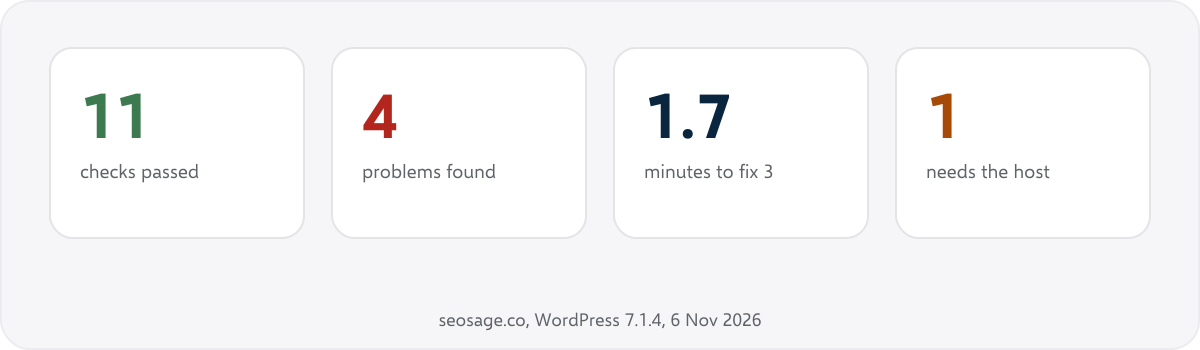
We ran all 15 checks on seosage.co on 6 November 2026. The site was 5 weeks old, with 36 posts and 77 pages, WordPress 7.1.4, one plugin and one small must-use plugin. Times are from the computer clock, from starting the change to checking it live. They include the backup, upload and cache clearing.
| Problem | Fix | Time |
|---|---|---|
Date archives (/2026/, /2026/11/, /2026/11/06/) open to Google, no canonical |
noindex on all date archives | 1.3 minutes for both |
/seo-audit/page/2/ redirected to an unrelated page (WordPress’s guess) |
Redirect to the category’s real page 2 | |
| Cache plugin update waiting (7.9.2 to 7.9.3) | Backup, update, check five pages | 0.4 minutes |
| PHP 8.1, no longer supported by PHP | Move to PHP 8.3 or later on the server | Not done yet |
Two things stood out. First, none of the four problems would have shown up in a normal crawl, because nothing on the site links to a date archive, a category’s page 2 under its short address, or the plugin list. You find them by testing the addresses WordPress makes on its own. Second, the fixes were fast. Finding them was the real work, which is why a list of addresses to test is worth keeping.
We will check these pages in Search Console around 4 December 2026 and add what changed here.
How often to audit a WordPress site #
- Every week: updates (check 13). Most hosts and WordPress itself can update plugins on their own.
- Every month: a full crawl of the site, and Search Console’s Page indexing report. Our Search Console audit walks through it.
- After any change of theme, SEO plugin, permalinks or host: all 15 checks. These are the changes that switch archives, redirects and noindex tags on or off without telling you.
How does SEOSage help audit a WordPress site? #
SEOSage is a desktop SEO audit app for Mac and Windows. It crawls every page of a WordPress site on your own computer, with no page limit, and lists the problems in order: noindex pages, redirects and redirect chains, broken links, canonical problems, duplicate titles, and pages in the sitemap that should not be. It does not log in to WordPress, so updates and the PHP version (checks 13 and 14) stay in the dashboard. It is free for 14 days.
Common WordPress SEO audit mistakes #
- Trusting the settings screen. A theme or plugin can override a setting. Test the real address.
- Running two SEO plugins. They fight over titles, canonicals and sitemaps. Keep one.
- Blocking pages in robots.txt to keep them out of Google. robots.txt stops crawling, not indexing. Use noindex, as Google explains in its guide to blocking indexing.
- Updating without a backup. A bad update can break the site. Back up first.
- Not writing down the date of each fix. Without it, you cannot tell in Search Console what made a difference.
Summary #
A WordPress SEO audit adds 15 checks to a normal audit: search engines allowed, one address per page, search pages, date archives, author pages, attachment pages, categories and tags, pagination and redirect guessing, comment and embed versions, feeds, the sitemap, robots.txt, updates, the PHP version, and the login page and WordPress files. Test the real addresses in the table above. On our own site, 4 of the 15 checks found a problem, 3 were fixed in 1.7 minutes, and none would have shown up in a normal crawl.
FAQ #
How do I do an SEO audit on a WordPress site? #
Crawl the site for the usual problems, then test the pages WordPress makes on its own (date, author, attachment, search, comment and embed pages), the sitemap and robots.txt, and check that plugins, themes, WordPress and PHP are up to date.
Do I need a plugin for a WordPress SEO audit? #
No. You can test every address in a browser. An SEO plugin such as Yoast or Rank Math makes some fixes easier, such as setting archives to noindex, and a crawler checks every page at once.
Should WordPress date archives be noindex? #
Usually yes. They repeat posts already on your blog page. Keep them only if your readers really browse by date, as on a news site.
Should I noindex category and tag pages? #
Keep category pages that group real topics and have a description. Set thin tag pages to noindex, or merge them.
Does the PHP version affect SEO? #
Not directly. An old PHP version gets no security fixes, and a hacked site can lose its rankings. Newer versions are also usually faster.
How long does a WordPress SEO audit take? #
On our 113-page site, the three fixes took 1.7 minutes. Finding the problems takes longer: work through the 15 checks and the address table once, then keep the table for next time.
Sources #
- Google Search Central: How to specify a canonical URL
- Google Search Central: Block search indexing with noindex
- WordPress Developer Resources: redirect_guess_404_permalink()
- WordPress: Requirements
- WordPress: Updating WordPress
- WordPress Developer Resources: Hardening WordPress
- PHP: Supported versions
Recommended #
- Technical SEO Audit Checklist: 25 Checks + Free PDF
- Google Search Console Audit: 12 Checks and a Free Checklist
- Search Console Page Indexing Report: Every Status Explained
- Broken Links and 404 Errors: How to Find and Fix Them
- SEO Site Migration Checklist: 30 Steps + Free Redirect Map
- How to Do an SEO Audit: 12 Steps (With Free Tools)
- Ecommerce SEO Audit: 20-Step Store Checklist
- Local SEO Audit Checklist: 12 Website Checks
Run your own SEO audit
SEOSage crawls every page of your website, lists what is wrong and turns it into a report you can send to a client.