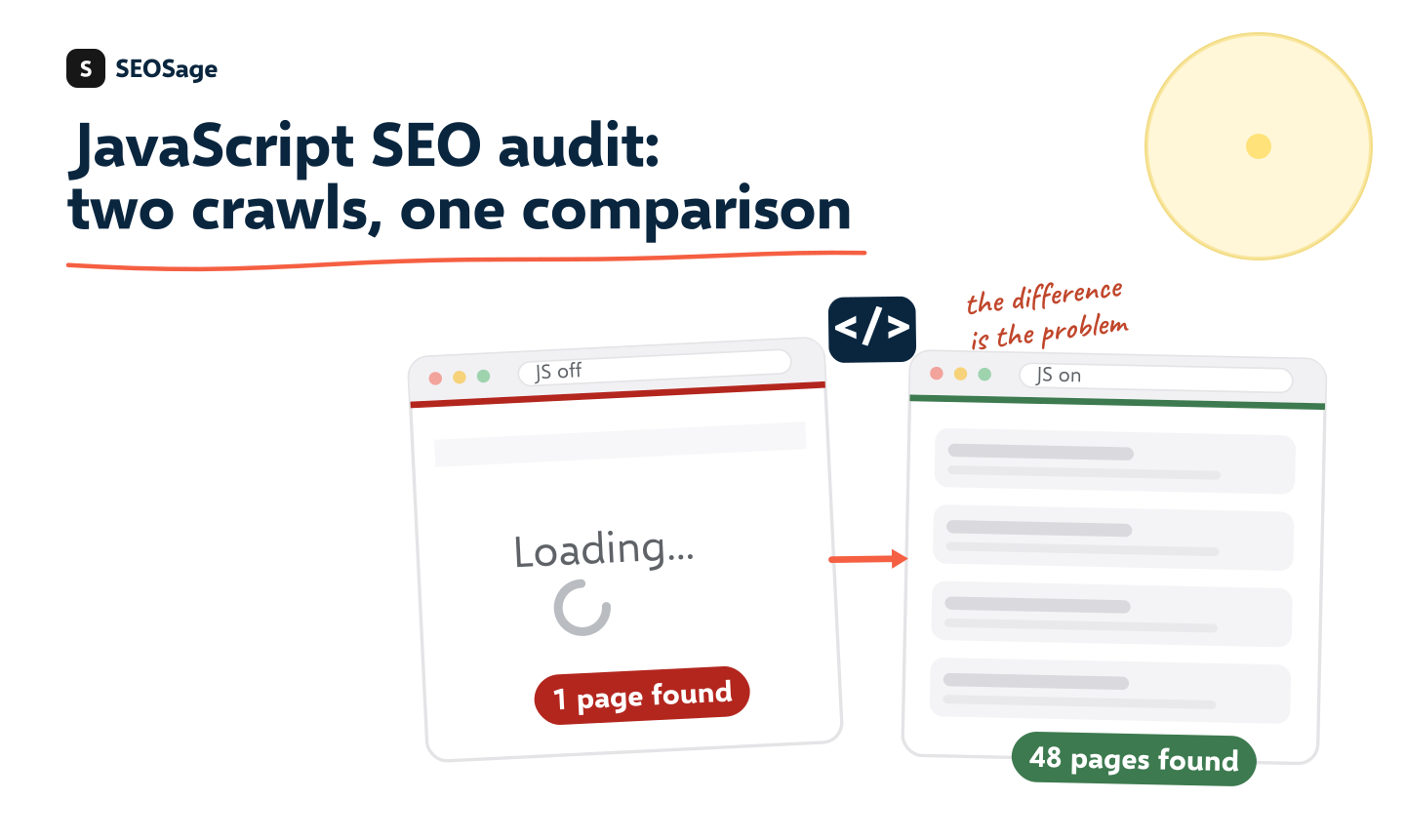
JavaScript SEO is making sure search engines can see and index content that a website builds with JavaScript. A JavaScript SEO audit checks that the important text, links, titles and canonical tags are present in the page Google renders, not only in code that runs later. This guide explains the problems, and gives you a two-crawl method to audit a JavaScript site.
It is written by the maker of SEOSage, a desktop SEO crawler that can render JavaScript. The method relies on that setting, and we say where it helps and where you need Google’s own tools.
TL;DR
- Many sites send an almost empty page and build the content with JavaScript. Google can often render it, but not always, and not at once.
- Audit with two crawls of the same site: one without JavaScript rendering, one with it. Compare pages found, titles, text and links.
- The most common faults are empty page shells, links that are not real links, content that loads only after a click, and titles or tags that change after the page loads.
- Use Google Search Console’s URL Inspection to see the page as Google renders it.
- Put the important content in the HTML the server sends, through server-side rendering or static pages, when you can.
What is JavaScript SEO? #
JavaScript SEO is the work of making content that is built with JavaScript crawlable, renderable and indexable by search engines. It matters for any site built with a framework such as React, Vue or Angular, and for older sites that load parts of a page with scripts.
A simple page arrives with its text already in the HTML. A JavaScript page may arrive nearly empty, with a script that fetches data and writes the content into the page. A visitor never notices. A search engine has to do extra work to see the same page.
How does Google handle JavaScript pages? #
Google’s guide to JavaScript SEO basics describes three steps: crawling, rendering and indexing. Google fetches the page, may place it in a queue to be rendered with a browser, and then indexes what it sees after rendering.
Three things follow from this:
- Content that needs JavaScript can be seen later than content already in the HTML, because rendering may wait in a queue.
- Anything that fails to render is missing. A script error, a blocked file or content that waits for a click can leave the rendered page empty.
- Other crawlers may not render at all. Some search engines, social previews and tools read only the HTML.
What problems does JavaScript cause for SEO? #
These ten are the ones an audit most often finds:
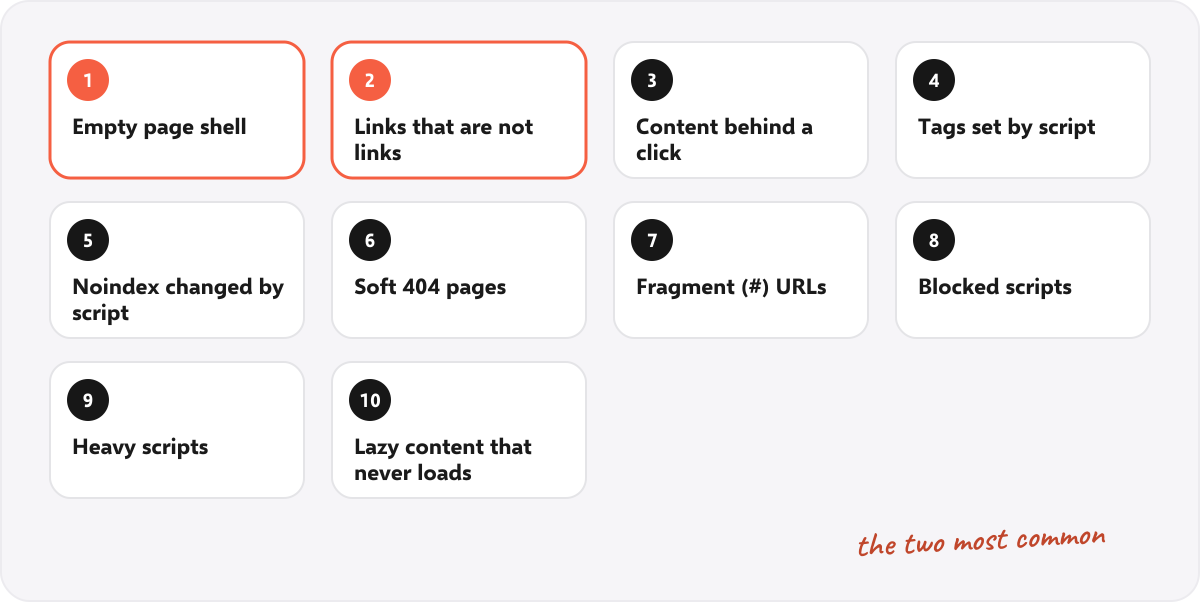
| Problem | Why it hurts |
|---|---|
| 1. An empty page shell | The HTML has almost no text, so a crawler that does not render sees a blank page |
| 2. Links that are not real links | Google follows links written as <a href>. Buttons and click handlers may not be followed. See Google’s page on crawlable links. |
| 3. Content behind a click or scroll | Text that loads only after an action may never be seen |
| 4. Titles, descriptions and canonicals set by script | They may be missing, or different, in the HTML that is first fetched |
| 5. A noindex or canonical changed by script | The rendered page can contradict the raw one, which confuses indexing |
| 6. Not-found pages that return status 200 | A single-page app shows an error message but sends a normal status, creating soft 404 pages |
| 7. URLs built with fragments | Addresses that rely on # are not treated as separate pages |
| 8. Blocked script or style files | If robots.txt blocks them, Google may render a broken page |
| 9. Slow rendering and large scripts | Heavy JavaScript slows the page and can delay or break rendering |
| 10. Lazy-loaded content that never loads | Content set to load as it scrolls into view may not appear for a crawler |
How do you audit a JavaScript site? The two-crawl method #
The quickest way to find JavaScript problems is to crawl the site twice and compare the results. The difference between the two crawls is the content and the links that only exist after JavaScript runs.
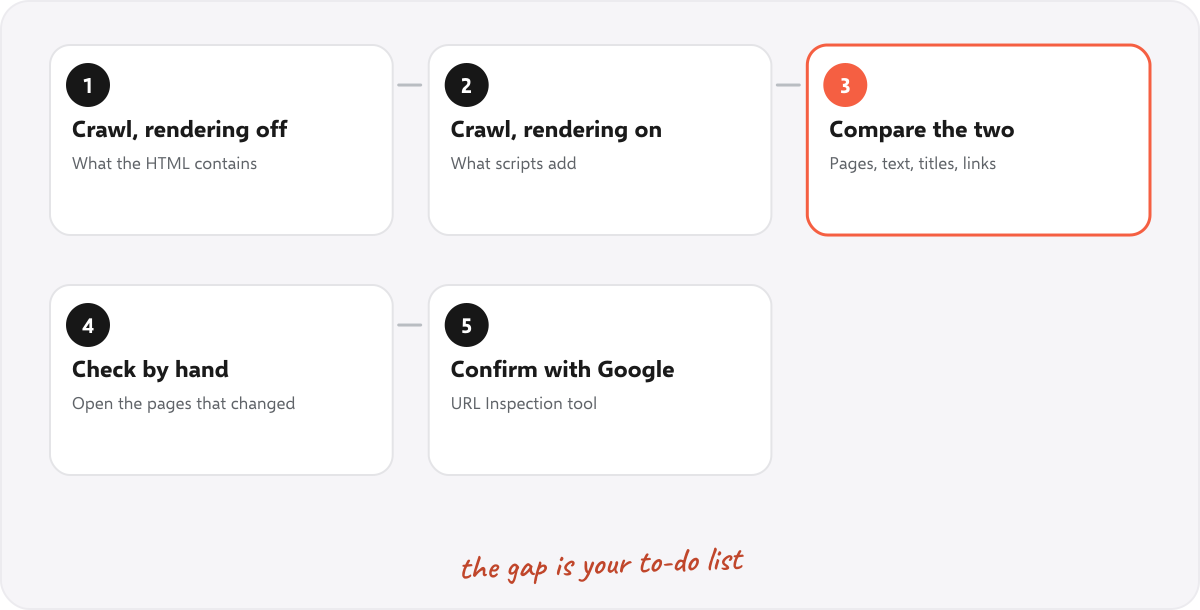
- Crawl with JavaScript rendering off. This shows what a crawler sees in the HTML the server sends. In SEOSage, rendering is a crawl setting that is off by default.
- Crawl again with rendering on. The crawl controls in SEOSage have a Render JavaScript option, which shows the content that scripts add to the page. It makes a crawl about four times slower, so leave it off unless you need it.
- Compare the two. Look at how many pages were found, and at titles, headings, text and links.
- Check the differences by hand. Open the pages that changed. Ask whether the content that appears only after rendering is important.
- Confirm with Google. Use the URL Inspection tool in Google Search Console to see the rendered page that Google itself sees.
SEOSage also helps in the first crawl. If a page is only an empty app shell, it flags the page as “Content needs JavaScript to appear” and tells you to turn rendering on.
What should you compare between the two crawls? #
| Compare | What a big difference means |
|---|---|
| Pages found | Many pages appear only with rendering, so links are built by script. A crawler that does not render will miss them. |
| Word count per page | The text arrives only after JavaScript runs |
| Titles and H1 headings | They are set by script. Check that the first HTML has something sensible. |
| Internal links | Navigation or related links are built by script |
| Canonical and noindex | The rendered page says something different from the raw one |
| Status codes | Missing pages that look like errors but return 200 |
If the two crawls look the same, the site probably sends its content in the HTML and JavaScript is not an SEO risk.
What does the difference look like? An illustration #
To show the idea without naming a real client, here is an example of a made-up single-page shop. The numbers are an illustration, not a real crawl.
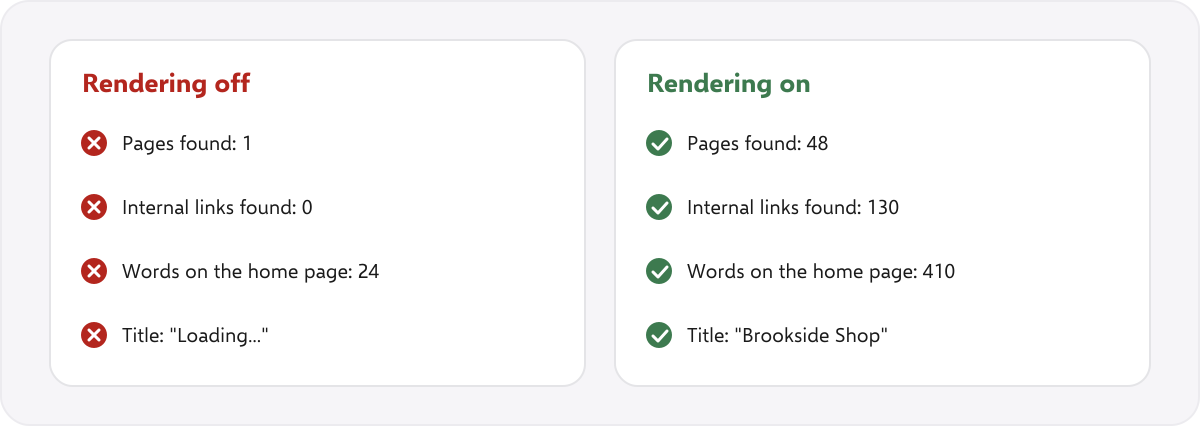
In this example, the first crawl finds the home page and nothing else, because the menu is built by a script. The second crawl follows the rendered links and finds the whole shop. Anyone who only read the HTML, including some search engines and tools, would see one page.
How can you check one page by hand? #
- Compare view-source with the inspector. In a browser, view the page source (the HTML the server sent) and then inspect the page (the rendered result). If the text is in the second but not the first, it depends on JavaScript.
- Use URL Inspection in Search Console. It shows the rendered HTML and a screenshot as Google sees them. See Google’s help page on the URL Inspection tool.
- Look for blocked files. Check that robots.txt does not block the scripts and styles the page needs. The robots.txt tester checks a rule.
- Test the title and canonical in the raw HTML with the canonical tag checker and the meta description checker.
How should a JavaScript site deliver its content? #
The safest approach is to send the important content in the HTML. The usual options are:
| Approach | How it works | For SEO |
|---|---|---|
| Server-side rendering | The server builds the HTML for each request | Content is in the first response. A common recommendation for pages that must rank. |
| Static generation | Pages are built in advance as plain HTML files | Fast, and the content is in the HTML. Good for pages that change rarely. |
| Client-side rendering | The browser builds the page from scripts | Works for Google when it renders, but carries the risks above |
| Dynamic rendering | Crawlers get a pre-built version, visitors get the app | Google describes it as a workaround, not a long-term solution |
Are JavaScript frameworks bad for SEO? #
No. A framework is a tool, and what matters is how the pages are delivered. The same framework can send finished HTML or an empty shell, depending on how it is set up. This table shows the usual starting point for common tools, though a project can change it:
| Tool | Usual default | What to ask the developer |
|---|---|---|
| React on its own | Client-side rendering | Is a framework such as Next.js used to render on the server or at build time? |
| Next.js | Choice of server-side, static or client-side per page | Which pages use which mode, and are the ranking pages server-rendered or static? |
| Vue or Angular on their own | Client-side rendering | Is server-side rendering set up for pages that must rank? |
| Astro | Static HTML, with scripts only where needed | Do any key pages depend on client-side scripts for their text? |
| WordPress with plugins and sliders | HTML from the server, plus scripts | Does any text or navigation appear only after a script runs? |
What should you tell the developer? #
A JavaScript SEO finding is only useful if the developer can act on it. Give them three things for each problem: the address of an example page, what the HTML contains and what the rendered page contains, and what you want to change. For example: “On /products/shoes/, the HTML has an empty div and no title. The rendered page has the product list. Please send the title and the product list in the server response.” Attach the two crawls, so they can see the difference for the whole site.
A JavaScript SEO audit checklist #
- Crawl once without rendering and once with it, and compare pages, titles, text and links.
- Confirm every important page has real text in the rendered page, and ideally in the HTML.
- Check that navigation and internal links are real
<a href>links. - Check that each page has its own address, with no fragments.
- Check that titles, descriptions and canonicals are present and consistent in both versions.
- Check that noindex tags and canonicals do not change after rendering.
- Check that not-found pages return a real 404 status.
- Check that robots.txt does not block the scripts and styles.
- Check that content behind tabs or “load more” is also reachable through a link.
- Test key pages with URL Inspection in Search Console.
- Look at speed and Core Web Vitals, because heavy scripts slow pages. See Core Web Vitals.
- Crawl again after the fixes and compare with the first crawl.
For the wider technical checks, use our technical SEO audit checklist.
Common JavaScript SEO mistakes #
- Auditing only with a crawler that does not render. A JavaScript site can look empty or look fine, depending on the setting.
- Always rendering. It is slow, and it hides what a non-rendering crawler sees. Use both.
- Using buttons as links. Use real links for anything you want found.
- Putting titles and canonicals only in scripts. Put them in the HTML as well.
- Trusting a single browser check. Confirm with Google’s own tool.
Summary #
JavaScript SEO is about making sure search engines can see the content a site builds with scripts. Audit by crawling twice, without rendering and with it, and compare pages, text, titles and links. Confirm with Google’s URL Inspection, and aim to put the important content in the HTML the server sends.
FAQ #
What is JavaScript SEO? #
It is making content built with JavaScript crawlable, renderable and indexable, so search engines can see the same page a visitor sees.
Can Google crawl JavaScript? #
Yes. Google can render JavaScript, but rendering may happen later than the first crawl, and it can fail. Do not rely on it for important content.
How do you do a JavaScript SEO audit? #
Crawl the site twice, once without JavaScript rendering and once with it, compare the results, check the differences by hand and confirm with Google’s URL Inspection tool.
Is JavaScript bad for SEO? #
Not by itself. Problems come from content that fails to render, links that are not real links, and tags that change after loading.
What is the best fix for a JavaScript site with SEO problems? #
Send the important content in the HTML with server-side rendering or static pages. Dynamic rendering is a workaround.
Does SEOSage render JavaScript? #
Yes. It is a crawl setting that you turn on per site. It makes a crawl about four times slower, so it is off by default. SEOSage runs on your own computer, with no page limit.
How do I check if Google sees my JavaScript content? #
Use the URL Inspection tool in Search Console, and compare the rendered HTML with the page you see.
Do I need to be a developer to audit a JavaScript site? #
No. A crawler finds the differences. You need a developer to fix problems that come from how the site is built.