A Google Search Console audit is a check of the reports Google gives every site owner for free: whether Google can crawl and index your pages, whether anything is broken or penalised, and which searches bring you visitors. It takes about an hour. Below are the 12 checks in the order to run them, what is normal in each, what to fix, and a real audit of our own site with the numbers.
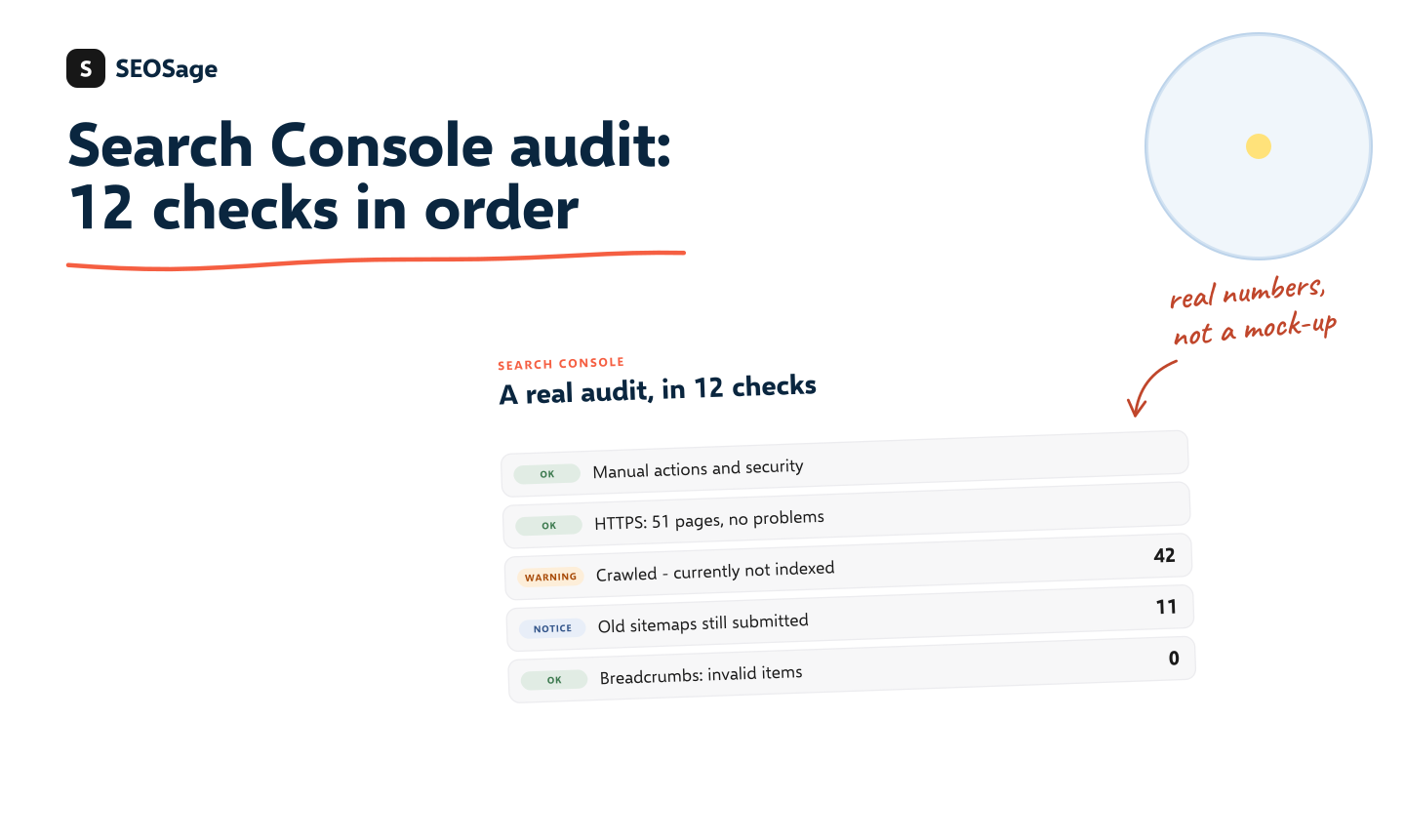
It is written by the maker of SEOSage, an SEO audit app that shows your Search Console report next to your site audit. Every report and menu name below was checked in a live Search Console account in November 2026.
TL;DR
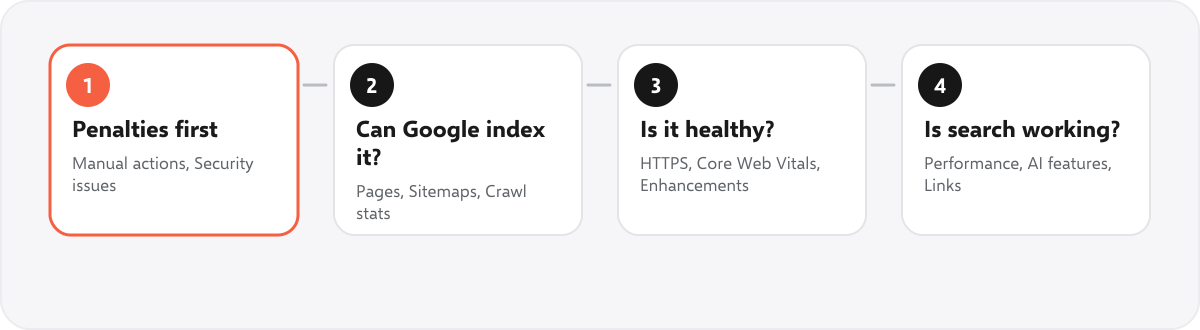
- Start with Manual actions and Security issues. A penalty or a hack matters more than anything else.
- Then check that Google can index the site: Page indexing, Sitemaps and Crawl stats.
- Then the health reports: HTTPS, Core Web Vitals and the structured data reports under Enhancements.
- Then whether search is working: Performance, the new Generative AI features report, and Links.
- Finish with URL Inspection on your five most important pages, and a look at Removals and the 16-month trend.
- Search Console shows what Google did, not why. A crawl of your site finds the cause.
This guide is part of our series on how to do an SEO audit. Keep your findings in the free SEO audit template.
What is a Google Search Console audit? #
A Google Search Console audit is a review of every report in Search Console, in a set order, to find what stops your pages from being crawled, indexed or clicked. Search Console is Google’s free tool for site owners. It is the only place where Google itself tells you which of your pages it has indexed, which it has left out and why, and how your pages perform in Google Search.
Run a full audit:
- After a launch, a redesign or a move to a new domain. These are the moments when pages drop out of Google by accident.
- When traffic falls and you do not know why.
- Every three months as a routine, with a quick monthly look at Page indexing and Performance.
A full audit takes about an hour for a small or medium site. A large site takes longer, because there are more statuses and example pages to read.
Before you start #
- Use a Domain property if you can. It covers every version of the site (http and https, with and without www, and subdomains). A URL-prefix property only covers the exact address you added, so it can hide problems on the other versions.
- Set the date range. Search Console keeps up to 16 months of Performance data. Use the last 3 months for the audit and Compare to see the change from the period before.
- Write down what you find as you go. Our free checklist has a box for each check and space for the numbers.
- Have a crawl of the site ready. Search Console tells you that a page is not indexed. A crawl usually shows the reason, such as a noindex tag, a canonical that points elsewhere or a page with no internal links.
Why this order? #
The checks go from the most serious problems to the least. If the site has a manual action or has been hacked, nothing else matters until that is fixed. If Google cannot index a page, its position in the results does not matter. Only once the site is indexed and healthy is it worth working on clicks and rankings.
The 12 checks, step by step #
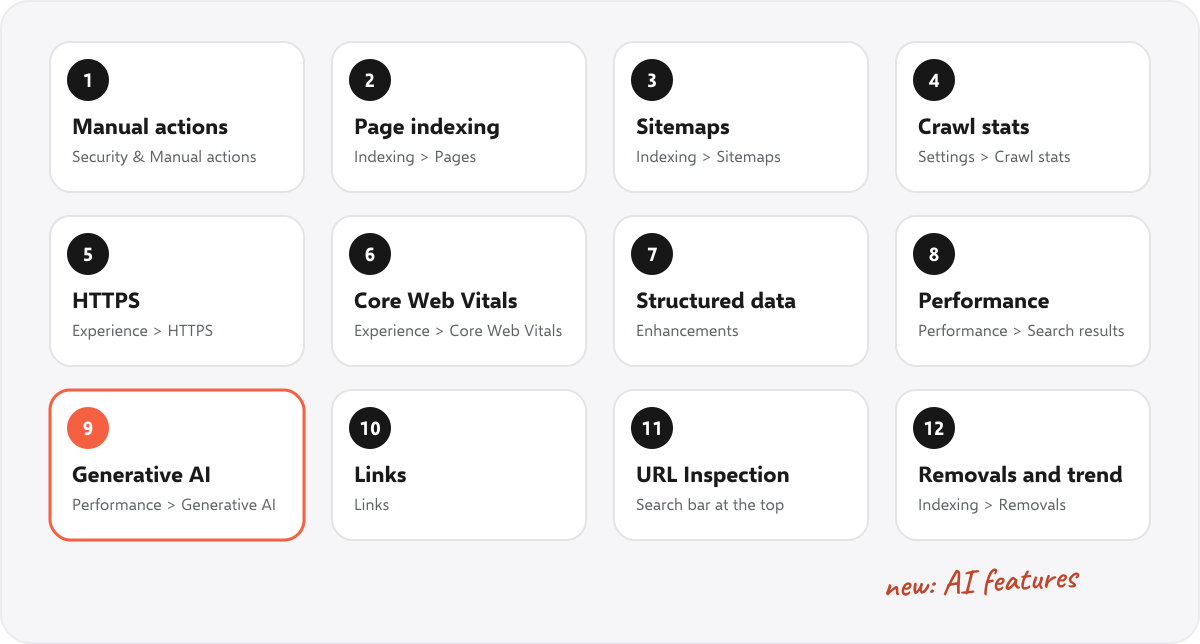
Each check below says where the report is in Search Console, what is normal, and what needs fixing.
1. Manual actions and security issues #
Where: Security & Manual actions > Manual actions, and > Security issues. Google’s guide: Manual actions report.
- What is normal: "No issues detected" on both pages.
- What to fix: Any listed action or issue comes first. Fix what it names, then use Request review on the same page.
2. Page indexing #
Where: Indexing > Pages. Google’s guide: Page indexing report.
- What is normal: Indexed pages close to the number you want in Google. Some "Not indexed" is normal: redirects, alternate canonicals and noindex pages you chose.
- What to fix: A page you want found under "Crawled – currently not indexed", "Discovered – currently not indexed", "Duplicate without user-selected canonical", "Soft 404", "Server error (5xx)", or blocked by noindex or robots.txt by mistake.
The statuses are explained one by one, with how to fix each, in our Search Console Page indexing report guide. Click a status to see example URLs, then check whether each one is a page you want in Google.
3. Sitemaps #
Where: Indexing > Sitemaps. Google’s guide: Sitemaps report.
- What is normal: Status "Success", a recent "Last read" date, and discovered pages close to the pages you want indexed.
- What to fix: "Couldn't fetch" or errors, old sitemaps still submitted, and sitemaps that list redirects, 404s or noindex pages.
Old sitemaps are easy to forget. When a site moves to a new sitemap, remove the old ones in the Sitemaps report so the list matches what your robots.txt file points to.
4. Crawl stats #
Where: Settings > Crawl stats (Open report). Google’s guide: Crawl Stats report.
- What is normal: Host status "No problems", most responses 200 (OK), and a steady number of crawl requests.
- What to fix: Host problems (robots.txt fetch, DNS, server connection), a rise in 5xx or 404 responses, or a slow average response time.
Crawl stats is not in the main menu. Open Settings, then Open report next to Crawl stats. It shows the last 90 days.
5. HTTPS #
Where: Experience > HTTPS
- What is normal: 0 non-HTTPS URLs.
- What to fix: HTTP pages in the report: redirect them to HTTPS, and point canonicals, sitemaps and links at the HTTPS address.
6. Core Web Vitals #
Where: Experience > Core Web Vitals. Google’s guide: Core Web Vitals report.
- What is normal: URLs grouped as Good. Small sites often see "Not enough usage data", which is not an error.
- What to fix: Poor or Needs improvement groups: fix the slowest page template first and test one example in PageSpeed Insights.
Google removed the old Mobile Usability report in December 2023, so guides that still tell you to check it are out of date. Use Core Web Vitals and test a page on your phone instead.
7. Structured data (Enhancements) #
Where: Enhancements > each report (for example Breadcrumbs, Review snippets, Videos). Google’s guide: Rich result reports.
- What is normal: 0 invalid items in each report.
- What to fix: Invalid items: fix the field the error names, then use Validate fix. Warnings are suggestions, not blocks.
8. Performance: queries and pages #
Where: Performance > Search results (Queries and Pages tabs). Google’s guide: Performance report.
- What is normal: Clicks and impressions steady or rising when you compare two periods.
- What to fix: Pages at positions 8 to 20 (close to page one), high impressions with a low click rate (rewrite the title and description), two pages showing for the same search, and sudden drops.
Set the date to 3 months and use Compare to see the change from the period before. Filter Pages by one URL to see which searches bring that page its impressions. Two of your pages showing for the same search is called keyword cannibalization; SEOSage’s keyword cannibalization report lists those searches from your Search Console data.
9. Generative AI features #
Where: Performance > Generative AI (Beta, where your account has it). Google’s guide: AI features and your website.
- What is normal: Impressions for the pages that answer questions in your field.
- What to fix: No impressions for your main guides: answer the question in the first two sentences, use clear headings, and keep facts and numbers up to date.
This report is new and marked Beta, so your account may not show it yet. It counts impressions of your pages in Google Search’s generative AI features, which gives you a free way to see whether Google’s AI answers show your site at all.
10. Links #
Where: Links. Google’s guide: Links report.
- What is normal: Real sites among the top linking sites, and your main pages among the most linked pages, inside and out.
- What to fix: Important pages with few internal links: link to them from related pages. Spam links can usually be ignored unless there is a manual action.
11. URL Inspection on key pages #
Where: The search bar at the top: paste the address of a key page. Google’s guide: URL Inspection tool.
- What is normal: "URL is on Google", and Google's chosen canonical is the same as yours.
- What to fix: "URL is not on Google", a different Google-selected canonical, or a page that cannot be fetched: fix it, then Request indexing.
12. Removals and the long trend #
Where: Indexing > Removals, and Performance with the date set to 16 months. Google’s guide: Removals tool.
- What is normal: No active removals you did not ask for, and no long slide in clicks.
- What to fix: A forgotten removal: cancel it. A long slide: compare the dates with site changes, such as a redesign, a migration or deleted pages.
A real audit: what we found in our own Search Console #
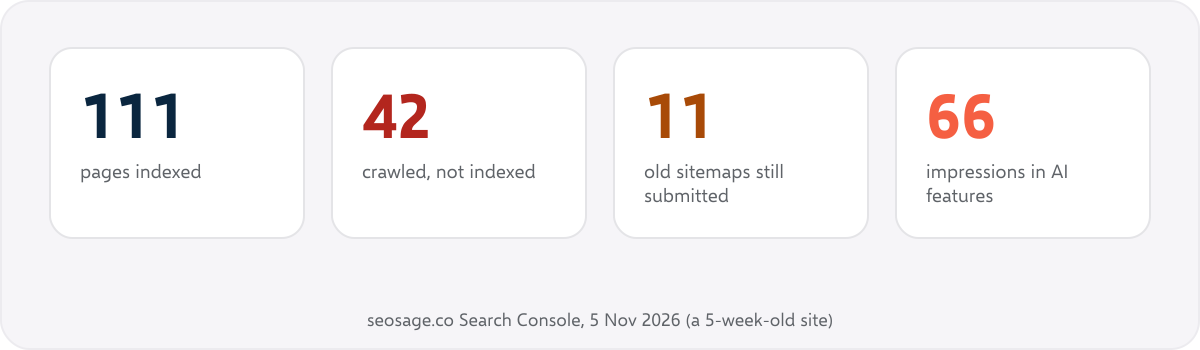
We ran the 12 checks on seosage.co on 5 November 2026. The site was five weeks old: its blog posts went live between 5 October and 1 November. These are the real numbers, with what each one means and what we are doing about it.
| Check | What Search Console showed | What it means |
|---|---|---|
| Manual actions and security | No issues detected | Nothing to fix. This is the result to expect. |
| Page indexing | 111 pages indexed, 70 not indexed: 42 Crawled – currently not indexed, 10 Excluded by noindex tag, 7 Page with redirect, 6 Alternate page with proper canonical tag, 4 Not found (404), 1 Blocked by robots.txt | The 42 are the main job. Google has seen these pages but has not added them yet, which is common on a new site with few links. Redirects and alternate canonicals are normal. Check that each noindex page is meant to be hidden, and that the 404s were removed on purpose. |
| Sitemaps | The sitemap index read without errors (181 pages, 42 videos found), but 11 old individual sitemap files were still submitted next to it | Harmless, but untidy. We will remove the old ones so the list matches the sitemap in our robots.txt file. |
| Crawl stats (90 days) | 2,410 crawl requests, average response time 713 ms, host status “No problems”, 95% of responses 200 (OK), 2% 301 and 2% 404 | Healthy. The small share of 404s matches the four missing pages in Page indexing. |
| HTTPS | 51 HTTPS URLs, 0 non-HTTPS | Nothing to fix. |
| Core Web Vitals | “Not enough usage data” on mobile and desktop | Normal for a young site: Google needs enough real visits first. We test pages in PageSpeed Insights in the meantime. |
| Enhancements | Breadcrumbs 48 valid, Review snippets 34 valid, Videos 33 valid, 0 invalid in each | No errors. The Videos report suggests a few improvements, which are optional. |
| Performance (28 days) | 25,400 impressions, 28 clicks, 0.1% click rate, average position 79 | Google shows the pages, but mostly on pages 6 to 9 of the results, where few people click. For example, “white label seo audit tool” had 1,546 impressions at position 85. The fix is authority (links from other sites), not more pages. |
| Generative AI features (28 days) | 66 impressions | Google’s AI features already show the site now and then. We track this number every month. |
| Links | 205 external links; top linking sites microsoft.com (103), marketingly.org (46, our own agency site) and trustpilot.com (10). 3,991 internal links, most of them to menu and footer pages | Few real sites link to us yet. Inside the site, the blog posts get far fewer internal links than the menu pages, so we link related guides to each other. |
The takeaway from our own audit: nothing was broken, but two things stood out. Google had crawled 42 pages without indexing them, and our pages sat too low in the results to get clicks. Both point to the same fix: more internal links between related pages, and more sites linking to ours.
What Search Console does not show you #
- The cause. It says a page is not indexed or has dropped, but not that the page has a stray noindex tag, a broken internal link or a canonical pointing somewhere else. A crawl shows that.
- Every page and every search. Tables in the reports show up to 1,000 rows, and Google leaves out searches it treats as private. Totals are complete, rows are not.
- Other search engines. It covers Google only. Bing has its own Bing Webmaster Tools.
- Right now. Performance data is a few hours behind, and reports such as Page indexing update less often, so a fix can take days to show.
- Pages Google has never found. A page with no links and no sitemap entry may not appear in any report at all.
How does SEOSage help with a Search Console audit? #
SEOSage is a desktop SEO audit app for Mac and Windows that crawls every page of a site on your own computer, with no page limit. Its Search page shows your Search Console numbers next to the crawl: clicks, impressions, click rate and position by query, page, country, device and date, with each crawl marked on the chart. You sign in with Google with read-only access. The crawl then shows the causes Search Console does not: noindex tags, canonicals, redirects, broken links and pages with no internal links. It is free for 14 days.
Common mistakes in a Search Console audit #
- Treating every “not indexed” page as a problem. Redirects, alternate canonicals and pages you chose to hide are meant to be left out.
- Clicking Request indexing for every page. It does not force indexing. Fix the cause first, then request it for a few important pages.
- Skipping Crawl stats. Server errors and host problems show there first, before they hurt your rankings.
- Judging by one week of data. Use at least three months, and compare with the period before.
- Ignoring the Google-selected canonical. If Google picks a different page as the main version, your page will not rank, however good it is.
- Disavowing spam links out of habit. Google ignores most of them. Disavow only if you have a manual action for unnatural links.
Summary #
A Google Search Console audit is 12 checks in a set order: penalties and security first, then indexing (Page indexing, Sitemaps, Crawl stats), then health (HTTPS, Core Web Vitals, Enhancements), then search (Performance, Generative AI features, Links), and finally URL Inspection on key pages and a look at Removals and the long trend. Search Console shows what Google did. A crawl of the site shows why, so use the two together. Download the free checklist to run your own.
FAQ #
How often should I audit Search Console? #
Run a full audit every three months and after any big change, such as a redesign or a move to a new domain. Look at Page indexing and Performance every month.
How long does a Search Console audit take? #
About an hour for a small or medium site. Large sites take longer because there are more statuses and example pages to read.
Is Google Search Console free? #
Yes. Anyone who can prove they own or manage a site can use it, at no cost.
How far back does Search Console data go? #
The Performance report keeps up to 16 months of data. Crawl stats covers the last 90 days.
Why are Search Console clicks different from Google Analytics visits? #
They count different things. Search Console counts clicks from Google Search results. Google Analytics counts visits to your site from every source, and only when its tag loads and the visitor allows it.
Can a Search Console audit replace a site crawl? #
No. Search Console shows Google’s view of your site, and a crawl shows what is on your pages. A full SEO audit uses both.
Sources #
- Google Search Console Help: Page indexing report
- Google Search Console Help: Sitemaps report
- Google Search Console Help: Crawl Stats report
- Google Search Console Help: Manual actions report
- Google Search Console Help: Core Web Vitals report
- Google Search Console Help: Rich result report overview
- Google Search Console Help: Performance report (Search results)
- Google Search Console Help: Links report
- Google Search Console Help: URL Inspection tool
- Google Search Console Help: Removals and SafeSearch reports tool
- Google Search Central: AI features and your website
Recommended #
- Search Console Page Indexing Report: Every Status Explained
- How to Do an SEO Audit: 12 Steps (With Free Tools)
- Technical SEO Audit Checklist: 25 Checks + Free PDF
- SEO Site Migration Checklist: 30 Steps + Free Redirect Map
- Ecommerce SEO Audit: 20-Step Store Checklist
- Local SEO Audit Checklist: 12 Website Checks
- SaaS SEO Audit Checklist: 1-Day and 1-Week Plan
- WordPress SEO Audit: 15 Checks We Ran on Our Own Site
Run your own SEO audit
SEOSage crawls every page of your website, lists what is wrong and turns it into a report you can send to a client.