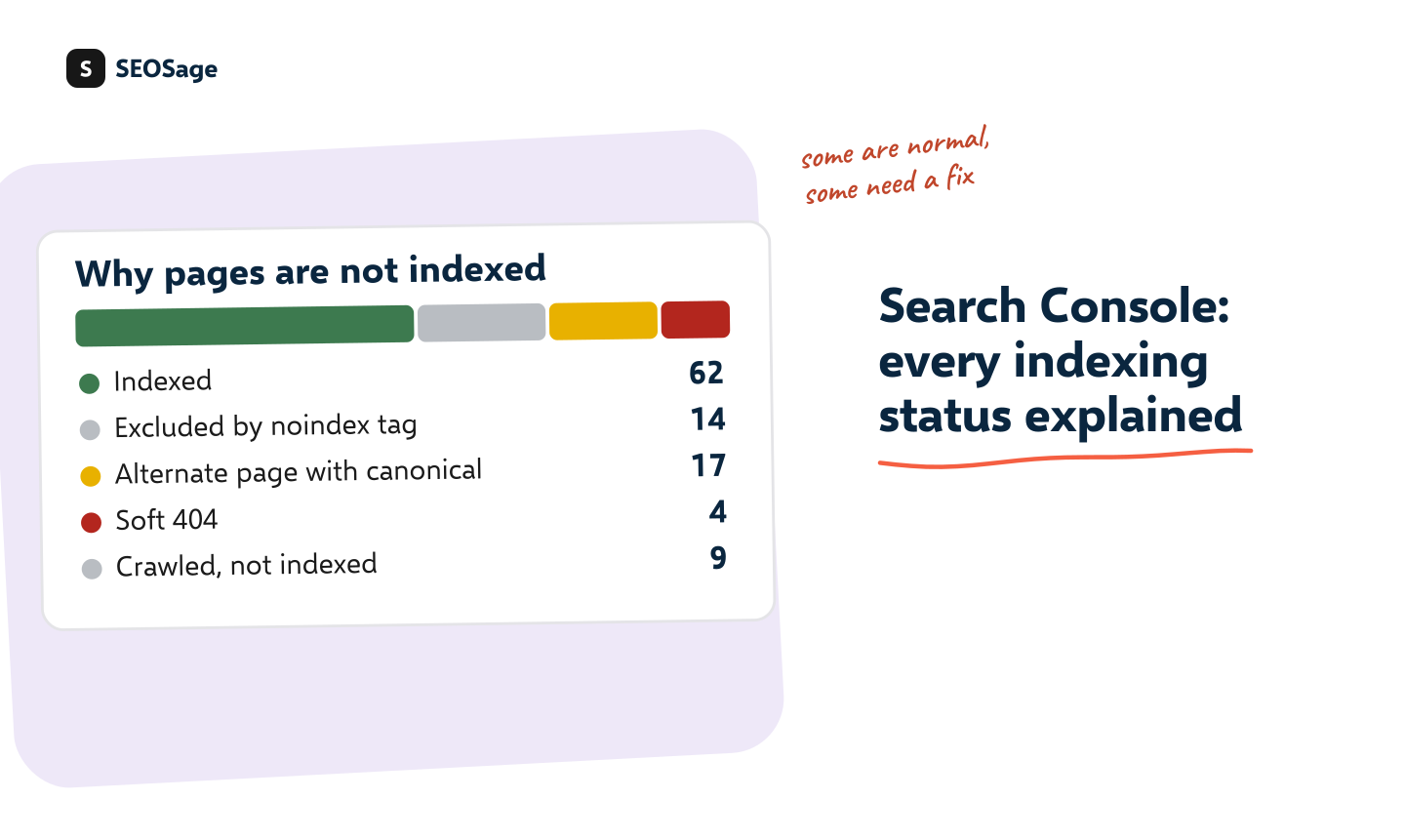
The Page indexing report in Google Search Console lists why some of your pages are not in Google’s index. Each reason is a status, such as “Crawled – currently not indexed” or “Alternate page with proper canonical tag”. Many of them are normal. This guide explains each common status, whether it is a problem, what to look for in a crawl and how to fix it.
It is written by the maker of SEOSage, an SEO audit app. A crawl cannot tell you what Google decided, but it can show the cause of most statuses before Google reports them, and we say where it cannot.
TL;DR
- A “not indexed” status is not always an error. Only pages you want in search matter.
- The statuses that usually need action are: Crawled or Discovered – currently not indexed, Duplicate without user-selected canonical, Soft 404, Server error and any noindex or robots.txt block on a page you want found.
- “Alternate page with proper canonical tag” and “Page with redirect” are normally fine.
- Crawl your site and match each URL to its status. The cause is usually visible in the crawl: a noindex tag, a canonical, a redirect, a thin page or an orphan.
- Fix the cause, then use URL Inspection to ask Google to look again. Indexing is never guaranteed.
What is the Page indexing report? #
In Google Search Console, the Page indexing report shows how many of your known pages are indexed and how many are not, with the reason for each group. Google explains the report in its Page indexing report help page. The groups are called statuses, and clicking one shows example URLs.
Two facts help you read it:
- Not every page should be indexed. Login pages, filtered pages, thank-you pages and duplicates are right to leave out.
- The report shows what Google did, not why. The cause is in your site, and a crawl is the fastest way to find it.
Which statuses are a problem, and which are normal? #
| Status | Usually a problem? | What it means in one line |
|---|---|---|
| Alternate page with proper canonical tag | No | The page points to another page as the main version |
| Duplicate without user-selected canonical | Yes | Google found a copy and you gave no canonical |
| Duplicate, Google chose different canonical than user | Check | Google ignored your canonical |
| Discovered – currently not indexed | Check | Google knows the address but has not crawled it yet |
| Crawled – currently not indexed | Yes | Google crawled it and chose not to index it |
| Excluded by “noindex” tag | Only if unintended | The page tells Google to leave it out |
| Blocked by robots.txt | Only if unintended | robots.txt stops Google crawling the page |
| Not found (404) | Only if the page should exist | The address returns an error |
| Soft 404 | Yes | The page looks like “not found” but answers as normal |
| Page with redirect | No | The address redirects to another page |
| Server error (5xx), Redirect error | Yes | The server failed, or the redirect loops |
What does each status mean, and how do you fix it? #
Alternate page with proper canonical tag #
What it means: the page has a canonical tag that points to another page, and Google followed it. The page you are looking at is an alternate version, so Google indexes the other one.
Is it a problem? No, if that is what you intended. It is common for pages with tracking parameters, print versions and filtered lists. It is a problem only if the canonical points the wrong way and you wanted this page indexed.
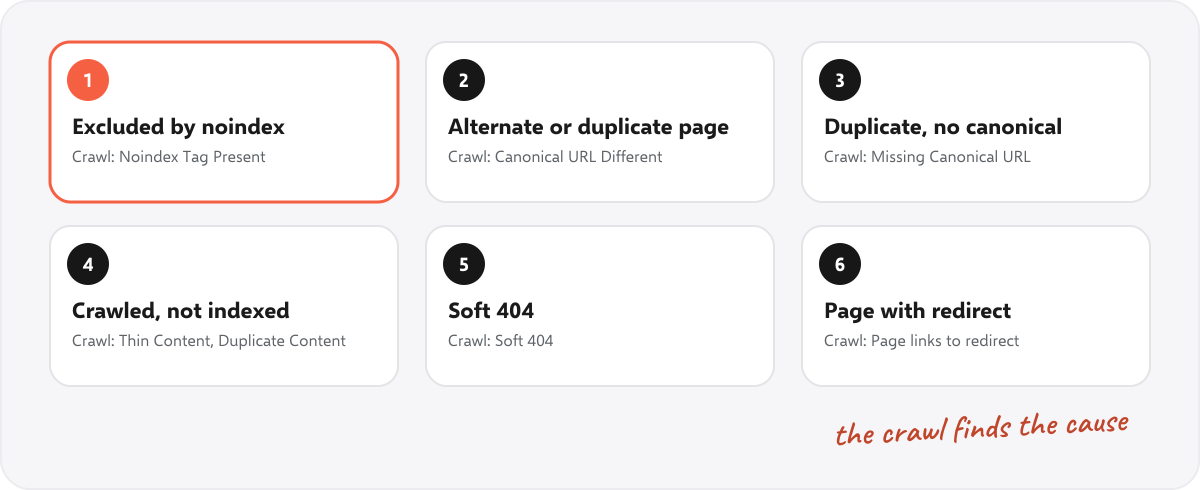
In a crawl: look at “Canonical URL Different”. Open a few pages and check that each canonical points where it should. Our canonical tag checker explains what to look for.
How to fix: if the page should be indexed, make its canonical point to itself. If not, leave it.
Duplicate without user-selected canonical #
What it means: Google found a page that looks like a copy of another, and you did not say which one is the main version, so Google chose.
Is it a problem? Often yes. Google may pick a version you did not want, and the copies split the credit between them.
In a crawl: look at “Missing Canonical URL” and “Duplicate Content Detected”, and at pages that share a title or heading.
How to fix: add a self-referencing canonical to every page, and a canonical on each copy that points at the main version. If the pages are true copies, merge them and redirect. Google’s guide to consolidating duplicate URLs explains the options.
Duplicate, Google chose different canonical than user #
What it means: you set a canonical, and Google decided another page is the better main version.
In a crawl: compare the canonical you set with the pages that are most linked and most complete. Look for canonicals that point to a redirect, a noindex page or a page that is much thinner.
How to fix: make the pages clearly different, or make your preferred page the stronger one, with more links from other pages and a fuller text.
Discovered – currently not indexed #
What it means: Google knows the address, usually from a sitemap or a link, but has not crawled it yet.
Is it a problem? It can be, on a large site, or on a site where Google sees little reason to visit. On a new site it often resolves with time.
In a crawl: look at “Orphan page” and at how deep the page sits. Pages with few internal links and a long click path are discovered slowly. Also check “Slow Response Time”.
How to fix: link to the page from important pages, keep the sitemap clean, and make sure the server answers quickly.
Crawled – currently not indexed #
What it means: Google visited the page and decided not to index it, for now.
Is it a problem? Yes, if the page matters. It usually points to a page that Google sees as thin, copied or low in value.
In a crawl: look at “Thin Content”, “Duplicate Content Detected” and pages with few links. A crawl gives you the word count and the duplicates. See our guide to the SEO content audit.
How to fix: make the page worth indexing: add something useful that is not elsewhere, link to it from related pages, and merge it into another page if it adds nothing.
Excluded by “noindex” tag #
What it means: the page tells Google not to index it, through a meta tag or an HTTP header.
Is it a problem? Only if you wanted the page found. Google explains the tag in its guide to blocking indexing.
In a crawl: look at “Noindex Tag Present” and “Noindex in HTTP header”. The second is easy to miss, because the page source looks fine. The free noindex checker tests a page.
How to fix: remove the tag from pages that should rank. A common cause is a staging setting left on after launch.
Blocked by robots.txt #
What it means: robots.txt tells Google not to crawl the page.
Is it a problem? Only if unintended. Remember that a blocked page cannot show Google a noindex tag, so a page that must be hidden should use noindex, not a block.
In a crawl: check the rules with the robots.txt tester.
How to fix: remove or narrow the rule.
Not found (404) #
What it means: the address returns a not found error.
Is it a problem? Only if the page should exist, or if pages and links still point to it. Google is fine with real 404s for pages that are gone.
In a crawl: look at “404 Client Error” and “Page links to broken page”. Fix the links that lead there. The free 404 checker tests one page.
How to fix: restore the page, or 301 redirect it to a close match, and update the links.
Soft 404 #
What it means: the page looks like an error page, such as “not found” or “no results”, but the server says everything is fine (status 200). Google’s help page on HTTP status codes describes soft 404 errors.
Is it a problem? Yes. Visitors reach a dead end and Google treats the page as empty.
In a crawl: look at “Soft 404”. It is common on stores, where removed products leave a page with a message and a normal status.
How to fix: return a real 404 or 410, or redirect to a relevant page. See the ecommerce SEO audit checklist, where we found 214 such pages on a real store.
Page with redirect #
What it means: the address redirects somewhere else, so Google indexes the destination instead.
Is it a problem? No. It is the expected result of a redirect. The problem is when you still link to the old address, or when redirects chain.
In a crawl: look at “Page links to redirect”, “Redirect chain” and “Redirect in sitemap”. Use the redirect chain checker for one address.
How to fix: link straight to the final address and keep redirected addresses out of the sitemap.
Server error (5xx) and Redirect error #
What it means: the server failed when Google asked for the page, or the redirect loops or is too long.
In a crawl: look for status 5xx pages and for redirect chains that never end.
How to fix: ask the host or developer to find the error, and remove redirect loops. If the problem is intermittent, check server load and response time.
How do you use a crawl to explain the statuses? #
- Export the list of not indexed pages from the Page indexing report, with the status of each.
- Crawl the whole site. SEOSage runs on your own computer with no page limit. Export the crawl.
- Match the two lists by address. For each status, look at what the crawl found on those pages.
- Look for patterns, such as a whole folder with a noindex tag, or all the thin pages in one group.
- Fix the cause, then crawl again and compare with the compare view.
The crawl also catches problems before Google reports them. A page with a noindex tag shows up in your first crawl, long before it appears as a status.
What does this look like on real sites? #
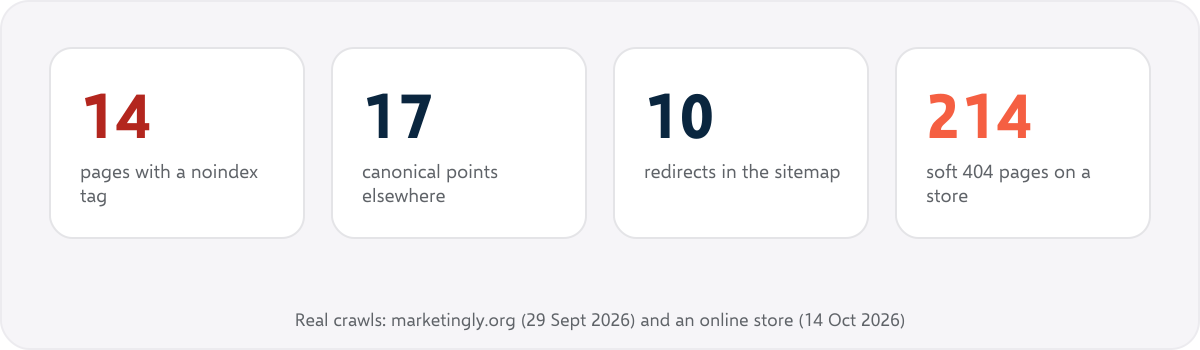
These are real crawl results. They show the cause of a status that Search Console would report later:
| Real crawl finding | Pages | Status Search Console would show |
|---|---|---|
| Noindex tag present (marketingly.org, 29 September 2026) | 14 | Excluded by “noindex” tag |
| Canonical URL different (marketingly.org) | 17 | Alternate page with proper canonical tag, or a duplicate status |
| Redirect in sitemap (marketingly.org) | 10 | Page with redirect |
| 404 client error (marketingly.org) | 4 | Not found (404) |
| Soft 404 (marketplace.uvation.com, 14 October 2026) | 214 | Soft 404 |
The crawl does not know what Google decided. It shows the likely cause. Treat the table as a guide to where to look.
Why isn’t my page indexed? A quick triage #
When one important page is not in the index, work down this list:
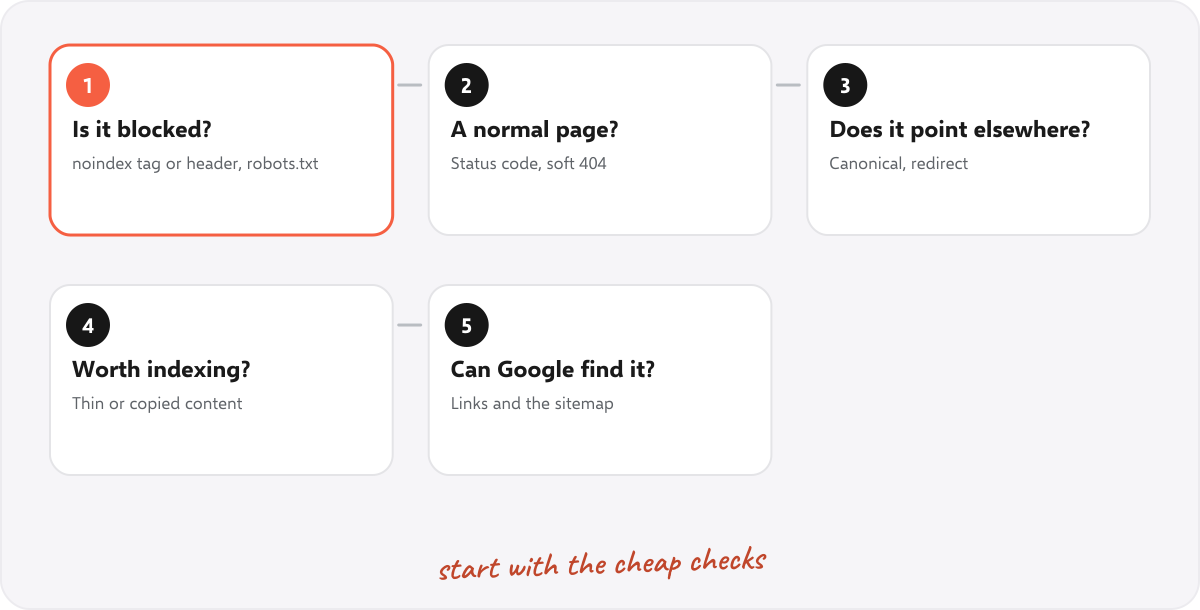
- Is it blocked? Check noindex (tag and header) and robots.txt.
- Does it return a normal page? Check the status code and look for a soft 404.
- Does it point somewhere else? Check the canonical and any redirect.
- Is it worth indexing? Check for thin or copied content.
- Can Google find it? Check that other pages link to it and that it is in the sitemap.
Then use the URL Inspection tool in Search Console to test the live page and to ask Google to look again. Requesting indexing does not guarantee it. Fix the cause first.
How long does indexing take? #
It varies from hours to weeks. New sites and pages with few links take longer. After you fix a cause, validate the fix in the report, and give Google time. If a page is still not indexed after several weeks, the cause is usually value or links, not a technical block.
Common mistakes with indexing statuses #
- Trying to index everything. Some pages are right to leave out.
- Requesting indexing over and over. Fix the cause instead.
- Blocking a page in robots.txt to hide it. Use noindex, and let Google crawl the page to see it.
- Ignoring the sitemap. Keep it free of redirected, broken and noindex addresses.
- Not crawling your own site. The crawl shows the cause directly.
Summary #
The Page indexing report lists why pages are not in Google’s index, and many statuses are normal. Fix the ones that affect pages you want found: crawled or discovered but not indexed, duplicates without a canonical, soft 404s, server errors and accidental noindex or robots.txt blocks. A crawl shows the cause of most of them, so crawl, match the lists, fix, and crawl again.
FAQ #
What does “Alternate page with proper canonical tag” mean? #
The page has a canonical tag that points to another page, and Google indexes that one instead. It is normal unless you wanted this page indexed.
What does “Duplicate without user-selected canonical” mean? #
Google found a copy of another page and you did not declare a canonical, so Google chose a main version. Add canonical tags.
What does “Crawled – currently not indexed” mean? #
Google crawled the page and chose not to index it for now, often because the page is thin, copied or has few links. Improve the page and link to it.
What does “Discovered – currently not indexed” mean? #
Google knows the address but has not crawled it yet. Link to the page from important pages, keep the sitemap clean and make sure the server is fast.
What does “Excluded by noindex tag” mean? #
The page contains a noindex instruction, in the HTML or the HTTP header. Remove it if the page should be found.
How do I find out why a page is not indexed? #
Open the URL in the URL Inspection tool, then crawl the site and check the page for a noindex, a canonical, a redirect, thin content and incoming links.
Can a crawler tell me what Google indexed? #
No. A crawler shows what is on your site. Search Console shows what Google decided. Use both together.
Does SEOSage connect to Search Console? #
SEOSage can show Search Console data, such as clicks, impressions and quick wins, next to your crawl. Use the Page indexing report in Search Console for the list of statuses.