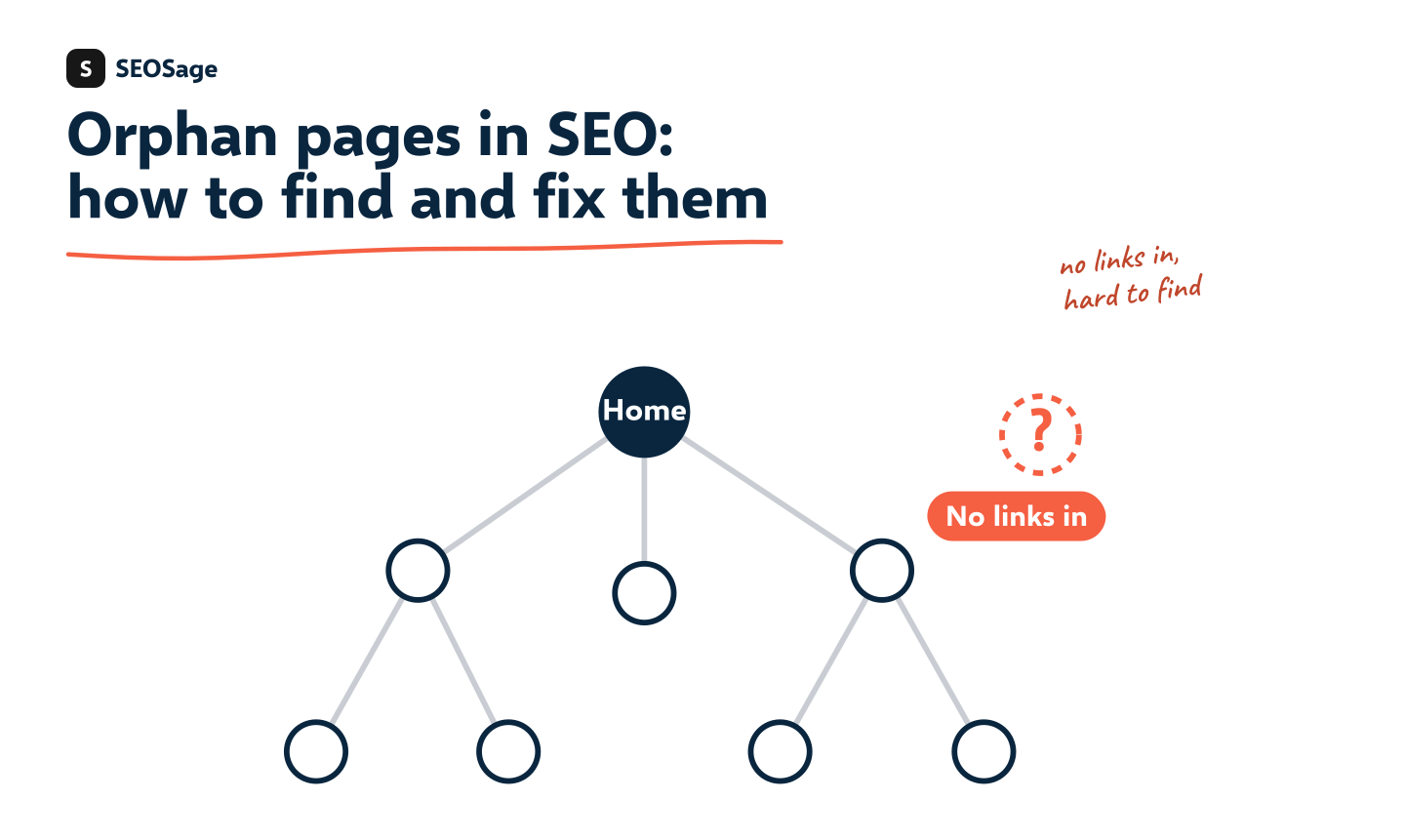
An orphan page is a page that no other page on the same website links to. Visitors and crawlers can only reach it through a direct address, a sitemap or a link from another site, so it is hard to find and it gets no link value from the rest of the site. This guide explains why orphan pages happen, how to find them, and what to do with each one.
It is written by the maker of SEOSage, an SEO audit app that lists orphan pages in every crawl and suggests where to add the link. We show a real example from a crawl of an online store.
TL;DR
- An orphan page has no internal links pointing to it. Search engines find pages by following links, so orphans are slow to be found and weak in search.
- They usually come from migrations, moved content, forgotten new pages and old campaign pages.
- A crawl that starts at the home page cannot see orphans on its own. Compare the crawl with the sitemap and with Search Console.
- Give each orphan one decision: link to it, merge it, redirect it, remove it or noindex it.
- Prevent new ones by linking every new page when you publish it, and crawl monthly.
What is an orphan page in SEO? #
An orphan page is a page with no internal links pointing to it from any other page on the same site. It can exist, load and even be listed in the sitemap, yet nothing on the site leads to it.
Two similar terms are easy to mix up:
| Term | What it means |
|---|---|
| Orphan page | No page links to it |
| Dead-end page | It has no links going out, so a visitor has nowhere to go |
| Deep page | It is linked, but only after many clicks from the home page |
| Weakly linked page | It has only one link pointing to it, so a single edit could orphan it |
Do orphan pages hurt SEO? #
Yes, usually, for two reasons. First, search engines find pages mainly by following links. Google says in its page on crawlable links that links are how it finds new pages. A page with no links can still be found through a sitemap, but it is slower to be discovered. Second, a page with no internal links gets no link value from the rest of the site, and nothing on the site tells Google that the page matters.
It is not a penalty. An orphan page does not harm the rest of the site. It just wastes a page that could be working for you. Some orphan pages are on purpose, such as a campaign page for an ad or a thank-you page. Those should usually be noindex.
Why do orphan pages happen? #
- A migration. Old addresses are redirected, but the new pages never get linked. See our SEO site migration checklist.
- Content moved or renamed. A page leaves a menu or a category, and nothing else links to it.
- A new page that was forgotten. It was published but never added to a menu, a list or a related-pages section.
- Old campaign and landing pages. The ad ended and the page stayed.
- Filters and tags that changed. A product or post is no longer in any category.
- A template change. A new design drops a sidebar or footer list that carried the links.
How do you find orphan pages? #
A crawler finds pages by following links from the home page. By definition it cannot find a page that nothing links to, so a plain crawl will not list your orphans. You find them by comparing lists:
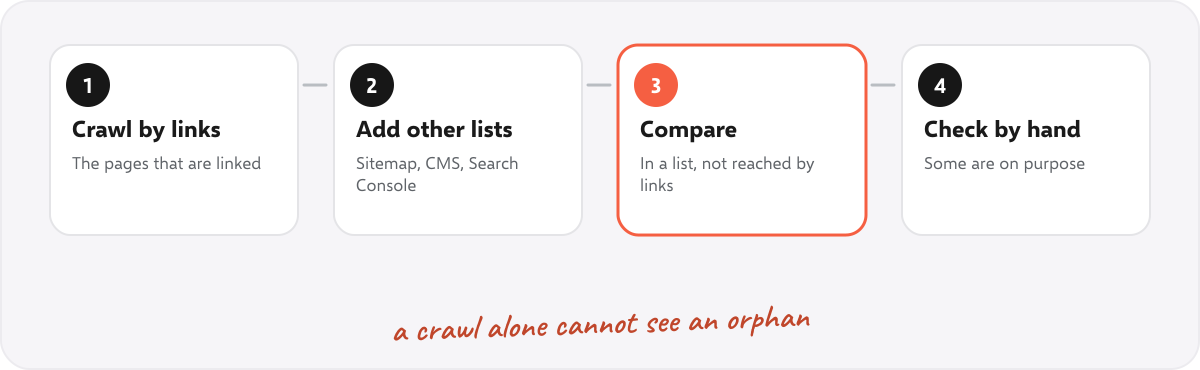
- Crawl the whole site by following links. This gives the list of linked pages.
- Add the pages you know about from other sources: the sitemap, a page export from your CMS, and the pages that Search Console and analytics show.
- Compare. Any page in the second list that the crawl did not reach through links is an orphan.
- Check each one by hand. Some are on purpose.
SEOSage does this for you. The crawl reads the sitemap as well, so a page that appears only in the sitemap, with no links, is flagged as an orphan page. It reports orphans once the crawl has finished, because on a crawl you stopped early a page can look unlinked only because the pages that link to it were not reached yet. The list shows only pages that Google can index, so noindex, redirecting and broken pages do not clutter it. See the orphan pages feature.
The same check can be done by hand in a spreadsheet for a small site: list the sitemap addresses, list the crawled addresses and look for the ones that appear only in the first list.
What does it look like on a real site? #
We crawled an online store, marketplace.uvation.com, with SEOSage on 14 October 2026. It checked 353 pages, and the Orphan page issue listed 13 of them. The examples included a group of server category pages and two standalone landing pages. The same crawl found 58 pages with only one internal link pointing to them, which is one edit away from being orphaned.
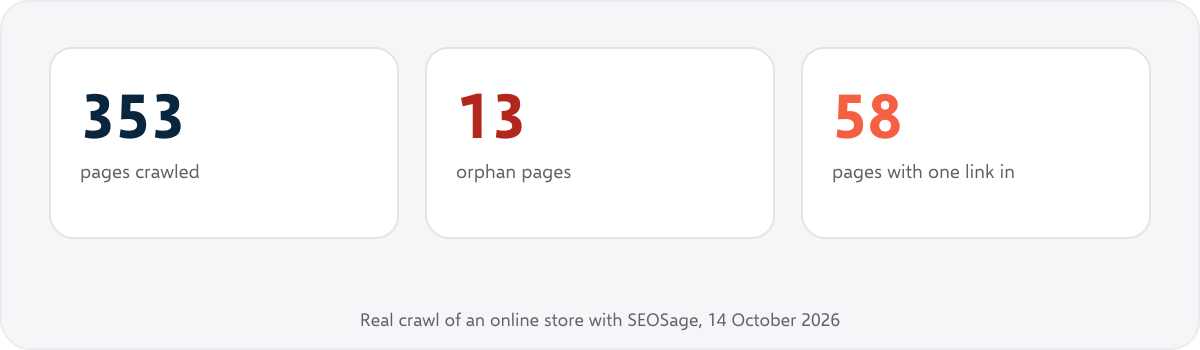
The 13 orphans were the right size for a quick fix. Each needed one decision and, for most, one link. SEOSage’s suggestion for each is up to three related pages to link from, with the anchor text to use. It is a starting point, because you review each suggestion yourself.
How do you fix orphan pages? #
Give each orphan page one of five decisions:
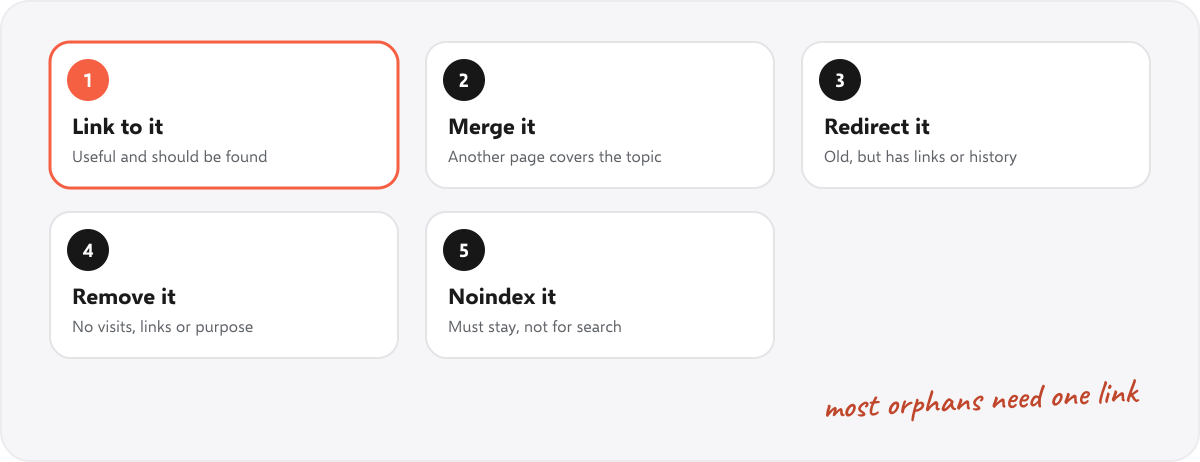
| Decision | Choose it when | What to do |
|---|---|---|
| Link to it | The page is useful and should be found | Add links from two or three related pages, and from a menu, hub or category list if it fits |
| Merge it | Another page covers the same topic | Move the useful parts into that page, then redirect |
| Redirect it | The page is out of date but has links or history | 301 redirect it to the closest useful page |
| Remove it | It has no visits, links or purpose | Delete it, return 404 or 410, and take it out of the sitemap |
| Noindex it | It must stay for a reason, such as an ad landing page | Add a noindex tag and leave it out of the sitemap |
When you add links, follow these rules:
- Link from pages on the same topic. A link from a related page carries more meaning than one from an unrelated page.
- Use descriptive link text, such as the page’s own heading, not “click here”.
- Put the link in the body of the page where it helps the reader, not only in a footer.
- Link from pages that matter. A link from a strong page helps more than one from a page nobody visits.
After the fixes, crawl again. The orphan list should shrink, and the compare view shows which ones are gone. Our guide to the SEO content audit explains the keep, improve, merge, redirect, remove and noindex decisions in more detail.
Why do internal links matter for a page? #
An internal link does three jobs. It gives a crawler a path to the page, it tells the reader and the search engine what the page is about through the link text, and it signals that the page matters, because pages that many other pages link to look more important than pages that few link to. An orphan page gets none of the three.
That is also why the pages that get the most links deserve attention. The pages with the most internal links are usually your home page, your main categories and your best articles. Linking from them to a page you want to boost is one of the cheapest changes in SEO. Our internal linking tool page shows how SEOSage points to the pages that need links.
What does fixing an orphan look like? A worked example #
This is an example for a made-up shop, not a real client. The crawl lists a page, /ovens/wood-fired-pizza-oven/, as an orphan page. It is in the sitemap and gets a few visits from search, but nothing links to it.
- Check it by hand. The page is a product page that should be found, so it needs a link, not a removal.
- Find related pages. The suggestions point to the “Outdoor ovens” category page, an article called “How to choose a pizza oven” and the home page’s featured products block.
- Add links. Add the product to the category list, add a sentence with a link in the article (“a wood-fired pizza oven reaches higher temperatures”) and add it to the featured products.
- Crawl again. The page now has three links pointing to it and is no longer listed as an orphan.
It took three edits. The most work was deciding where the link belonged, which is why the decision step comes first.
How do you stop orphan pages coming back? #
- Link every new page when you publish it. Make “add two internal links” part of the publishing checklist.
- Use hub pages and lists that include new pages automatically, such as a category list or a “related articles” block.
- Check after every migration or redesign, because they are the most common cause.
- Crawl monthly and look at the orphan list and the pages with only one link.
How do you find orphan pages in WordPress? #
WordPress sites make orphan pages easily, because a page can be published without being added to any menu. Crawl the site, make sure the sitemap from your SEO plugin is included, and look at pages that are in the sitemap but not linked. Check pages and posts that are not in a menu, a category or a related-posts list. SEOSage works with any platform, because it reads the public pages.
Common mistakes with orphan pages #
- Relying on the sitemap alone. A page in the sitemap but without links is still weak.
- Deleting every orphan. Some are useful and just need a link.
- Linking from unrelated pages to get rid of the flag. Link where it makes sense for the reader.
- Judging a half-finished crawl. Orphans are only reliable after a complete crawl.
- Forgetting the weakly linked pages. A page with one link is nearly an orphan.
Summary #
An orphan page is a page that no other page on the site links to. It is hard for search engines to find and gets no link value. Find orphans by comparing a crawl with the sitemap and other page lists, then give each a decision: link to it, merge it, redirect it, remove it or noindex it. Link every new page when you publish, and crawl monthly.
FAQ #
What is an orphan page in SEO? #
It is a page with no internal links pointing to it from other pages on the same site.
Are orphan pages bad for SEO? #
Usually, yes. They are harder for search engines to discover and get no internal link value. They do not cause a penalty.
How do I find orphan pages? #
Crawl the site, then compare the crawled pages with your sitemap, your CMS list and Search Console. Pages that appear in those lists but were not reached by links are orphans.
Can a crawler find orphan pages? #
Not by following links alone. It needs another source of addresses, such as the sitemap. SEOSage reads the sitemap and flags pages that are only there.
Can orphan pages rank? #
They can, if Google finds them another way, but they have a weaker position than linked pages. Linking to them usually helps.
How do I fix an orphan page? #
Add links from related pages, or merge, redirect, remove or noindex it if it has no place on the site. Then crawl again to confirm.
How many orphan pages are too many? #
There is no fixed number. Any orphan page that you want found is worth fixing, and a long list suggests a migration or template problem.
Does SEOSage suggest where to add the links? #
Yes. For each orphan page it shows up to three related pages to link from and the anchor text to use. You add the link yourself, and SEOSage does not edit your site.