An SEO client report is a short document that tells a client three things: how their website is doing, what is wrong, and what happens next. The best ones are a few pages long, written in plain words, with the fixes in order of what helps most.
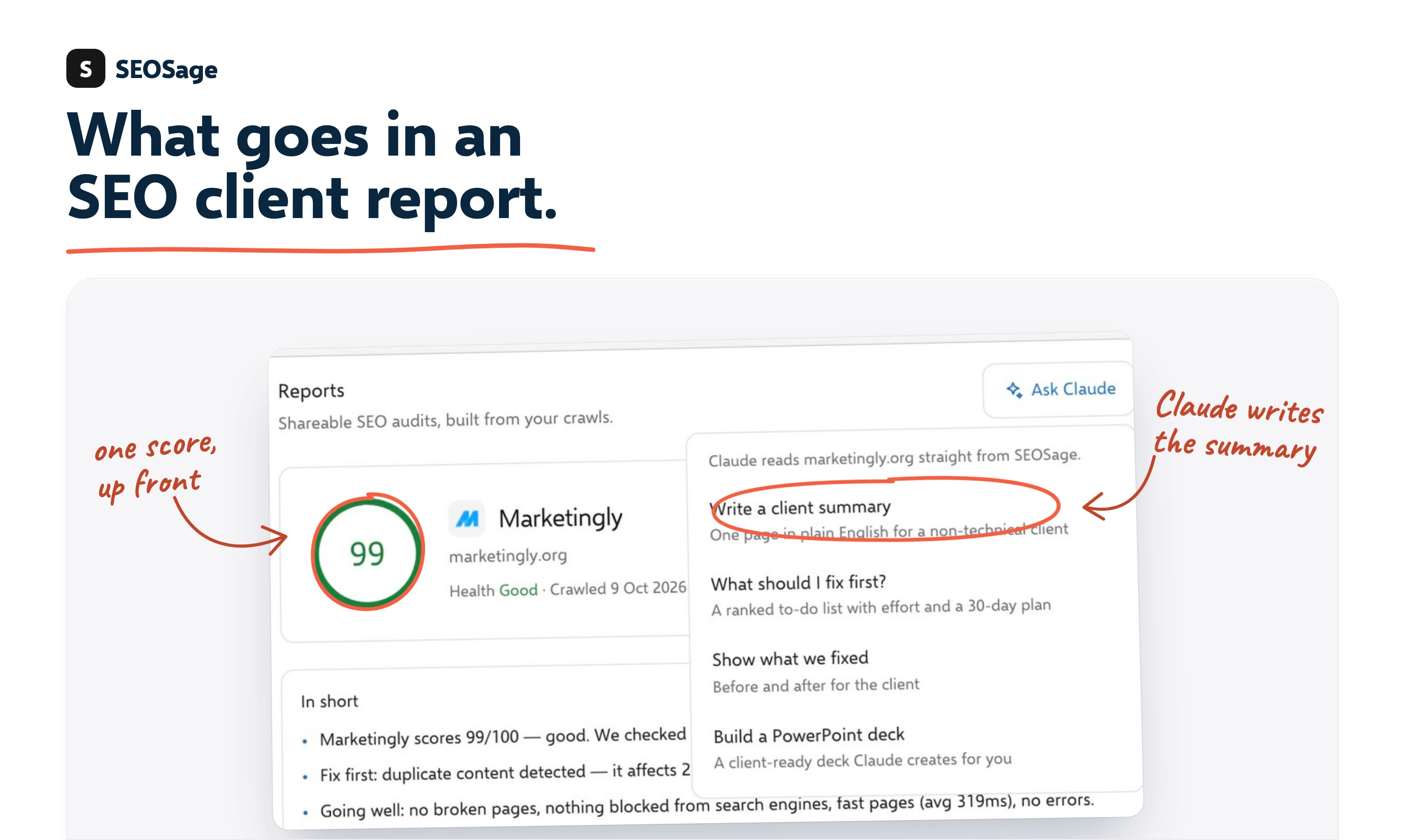
Below are the six parts of a good SEO report for a client. Each one comes with an example from a real report: a crawl of 53 pages on marketingly.org, made with SEOSage. You can open the full sample SEO client report as a PDF and read it first.
If you send reports to clients under your own name, our white label SEO audit tool puts your logo and colours on them.
TL;DR
- A client report answers three questions: how is the site doing, what should we fix, and what happens next.
- Six parts: score and key numbers, a short summary, how the site is doing, a ranked fix list, a 30-day plan and an appendix.
- Rank fixes by what helps visits, not by how loud the warning is.
- Keep the main report short. Put every single issue in the appendix.
- A first audit report looks at what is wrong. A monthly progress report shows what changed since last time.
About the example #
The example is a real crawl of marketingly.org, a site we run, made on 9 October 2026 with Google Search Console data for the 28 days before. The words in the report were written by Claude, the AI assistant, from that crawl and search data, through the SEOSage connector. The report carries Marketingly’s logo. Your own reports carry yours.
It is a small site, so the numbers are small. The same layout works for a much bigger site.
Audit report or progress report? #
There are two kinds of SEO report for a client, and they use the same six parts.
- A first audit report is for a new client or a one-off job. It says what the site looks like today, what is wrong and what to fix first.
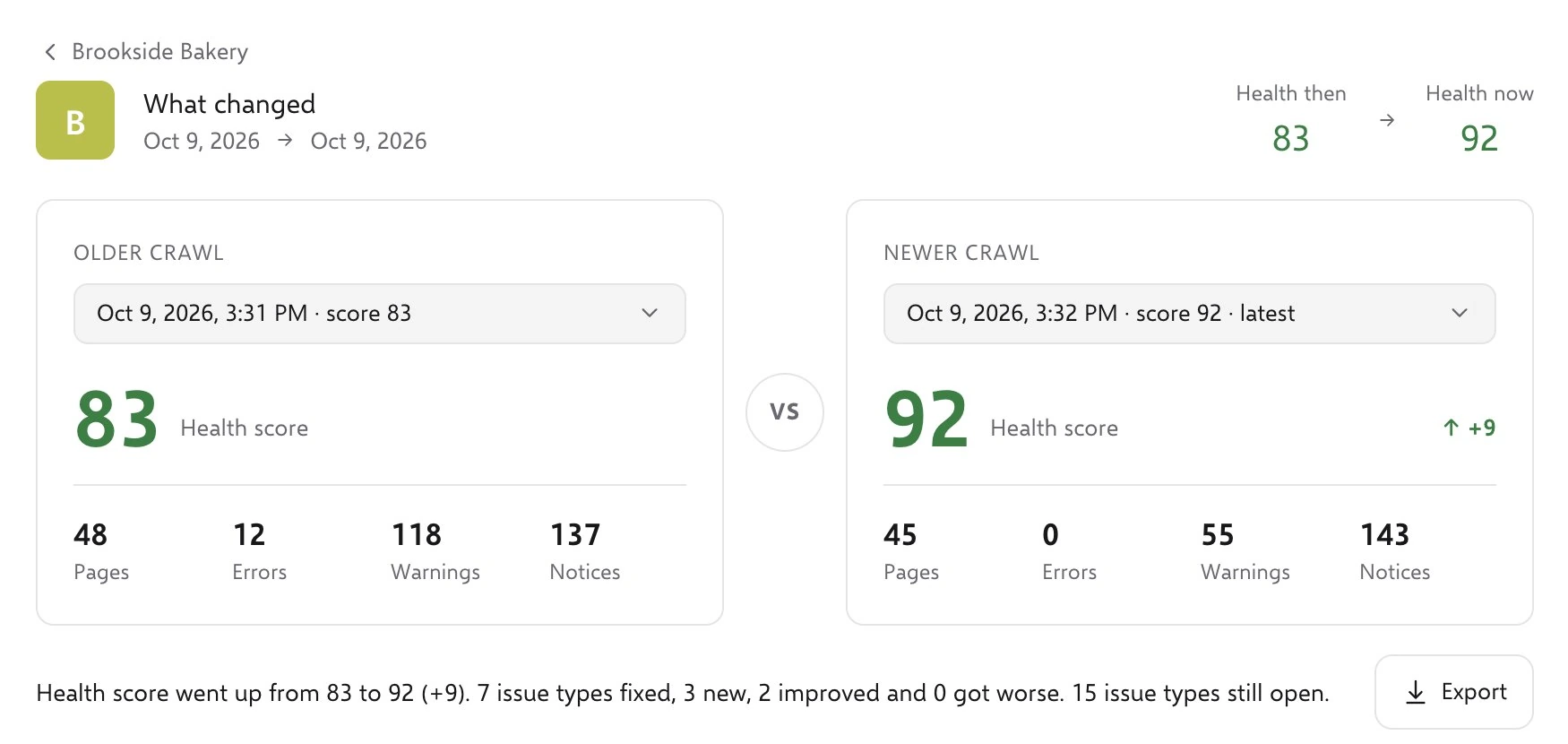
- A monthly progress report is the SEO client progress report you send after the work starts. It shows what was fixed, what is new and what got worse since the last crawl.
The example below is a first audit report. For a progress report, add one thing: a side-by-side with the last crawl. SEOSage has a compare crawls view for that.
The six parts of an SEO client report #
1. The score and the key numbers #
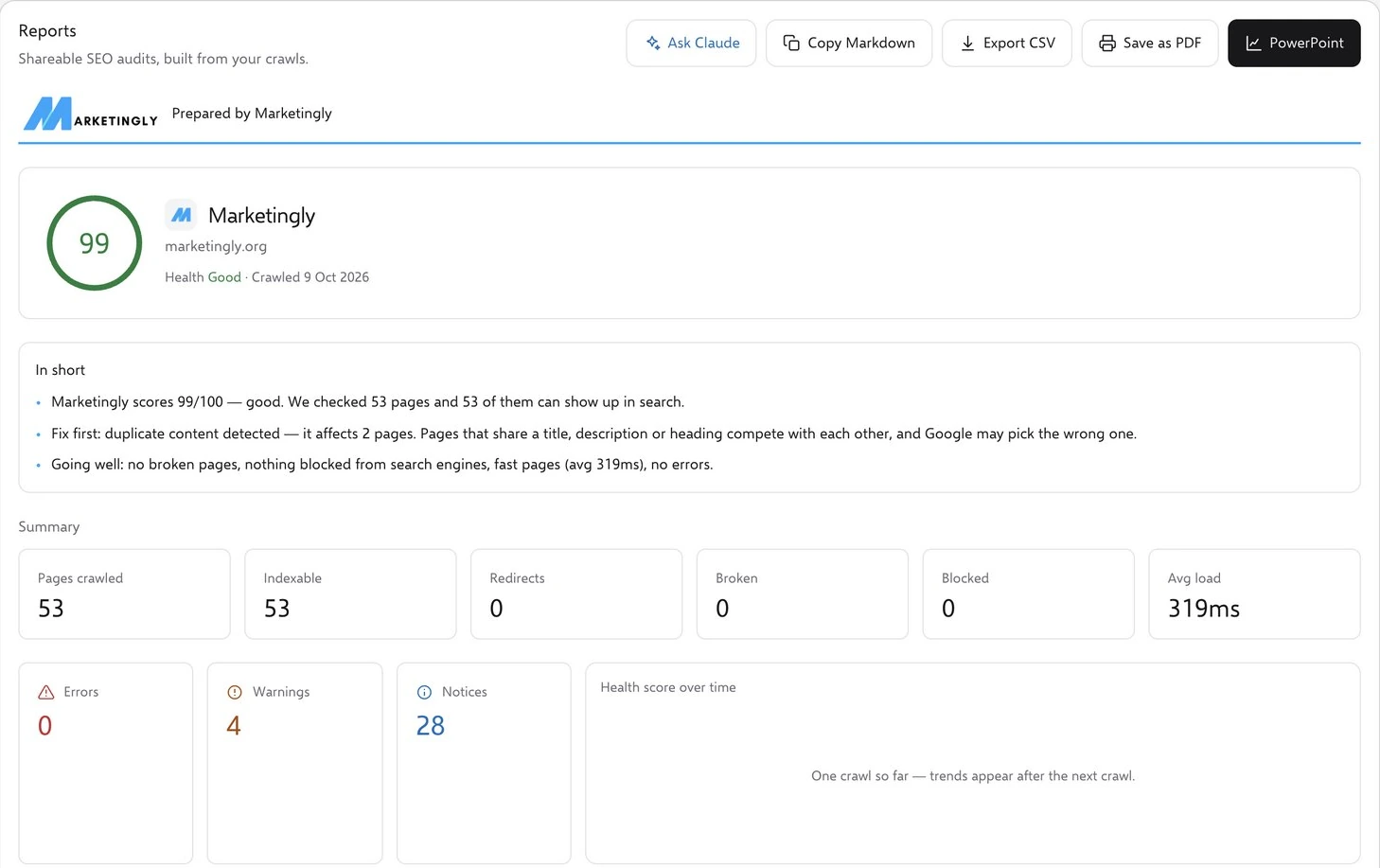
Start the report with one score and three numbers. The client sees in five seconds whether the news is good or bad. In the example, the cover shows a health score of 99 out of 100 (labelled “Good”), 53 pages checked, 0 errors and 4 warnings.
Say what the score means in one line, and keep the number of boxes small. A cover with 20 numbers tells the client nothing.
2. The short version #
This is the page most clients read, and some read nothing else. Write it for a person with two minutes. Say how the site is doing in two sentences, give no more than three findings, and say what to do first.
In the example it opens like this: “marketingly.org is in good shape. We checked all 53 pages and found no errors, no broken pages and nothing blocked from Google.” Then three short findings, then one clear first step.
Write this page last. You cannot summarise a report you have not finished.
3. How the site is doing #
Show two things here: what the crawl found on the pages, and how people reach the site from Google.
For the pages, the example uses simple bars: the share of pages with a good title, a meta description, one H1 heading, alt text on images, structured data and a canonical tag. The lowest bar (alt text, at 81%) gets one plain sentence about why it matters.
For Google, four numbers cover it. They come from Google Search Console:
- Clicks: visits from Google (10 in the last 28 days in the example).
- Times shown: how often the site appeared in results (1,164).
- Click rate: clicks divided by times shown (0.9%).
- Average position: where the site ranks, with 1 at the top (39.9).
A number alone is not a finding. Add what it means. In the example, 6 of the 10 clicks go to the home page, which is why the home page is the first fix.
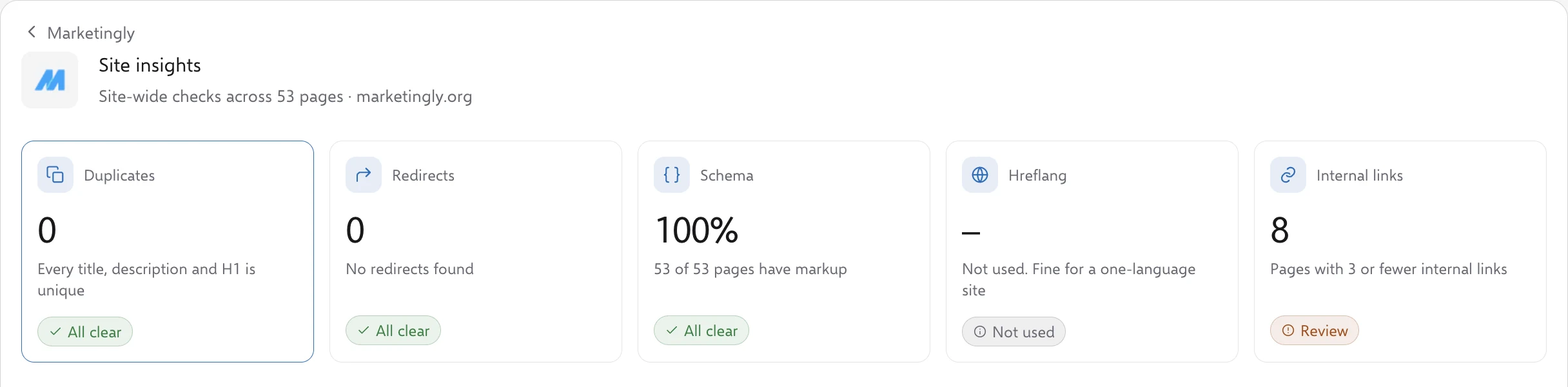
In SEOSage, the Site insights screen shows the site-wide checks: duplicate titles, descriptions and headings, redirects, structured data, hreflang and pages with few internal links.
4. A fix list ranked by what helps most #
This is the part clients pay for. A good fix list has four things: what to fix, why it matters on this site, how much work it is, and how much it will help. It also names the exact pages, so a developer does not have to hunt.
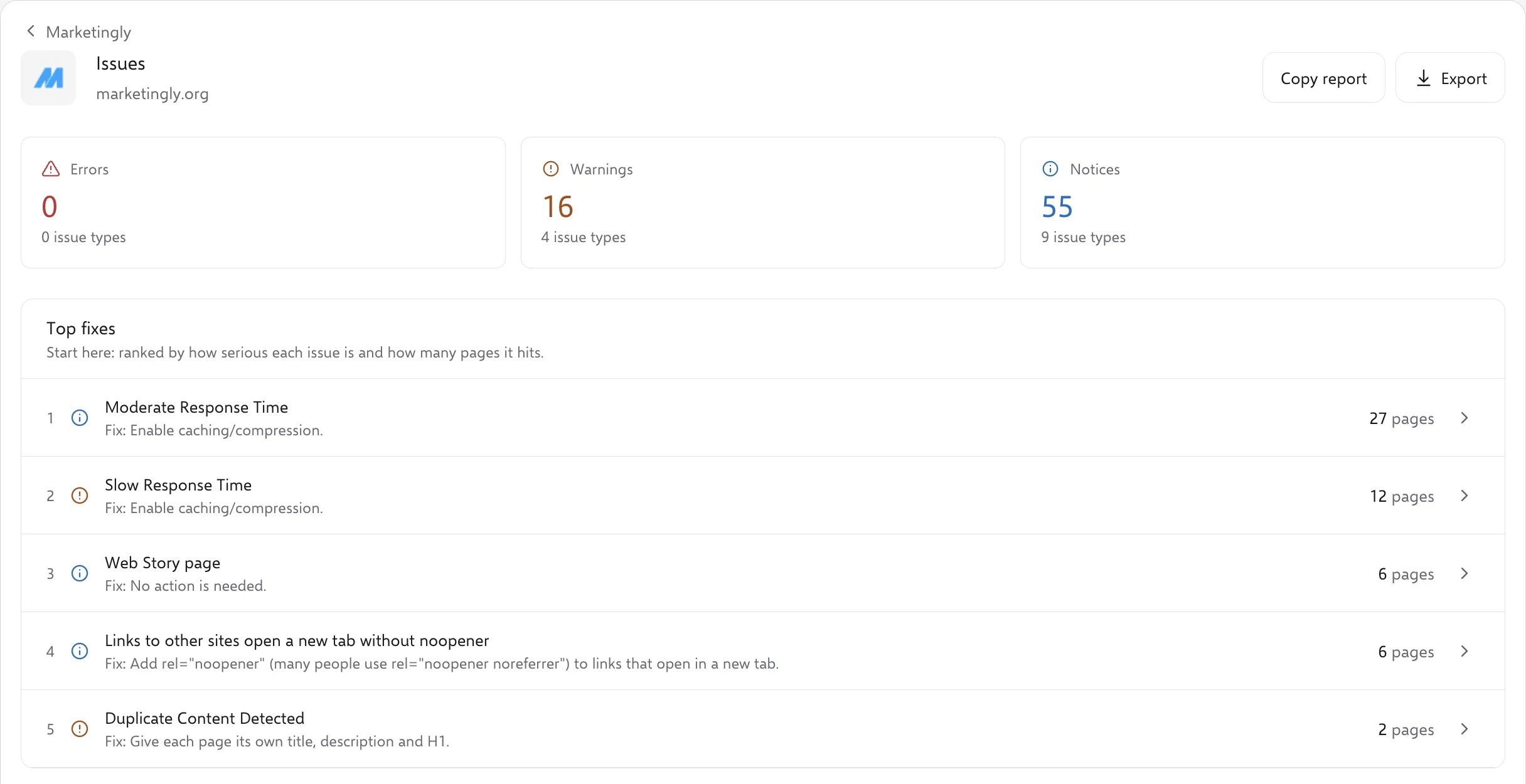
Do not rank by how serious a warning looks. Rank by what it means for visits. In the example, the three warnings sit on pages that got no visits in 28 days, while the slowest page (2.8 seconds) is the one most visitors land on. So the speed fix comes first, ahead of the warnings.
| # | Fix | Why it matters here | Effort | Impact |
|---|---|---|---|---|
| 1 | Speed up the home page | It responds in 2.8 seconds and brings in 6 of the 10 visits. | Medium | High |
| 2 | Add FAQ markup to the blog page | The blog page ranks at position 3.1 and has three question headings. | Low | Medium |
| 3 | Give two category pages their own titles and descriptions | They share a title or description, so they compete with each other. | Low | Medium |
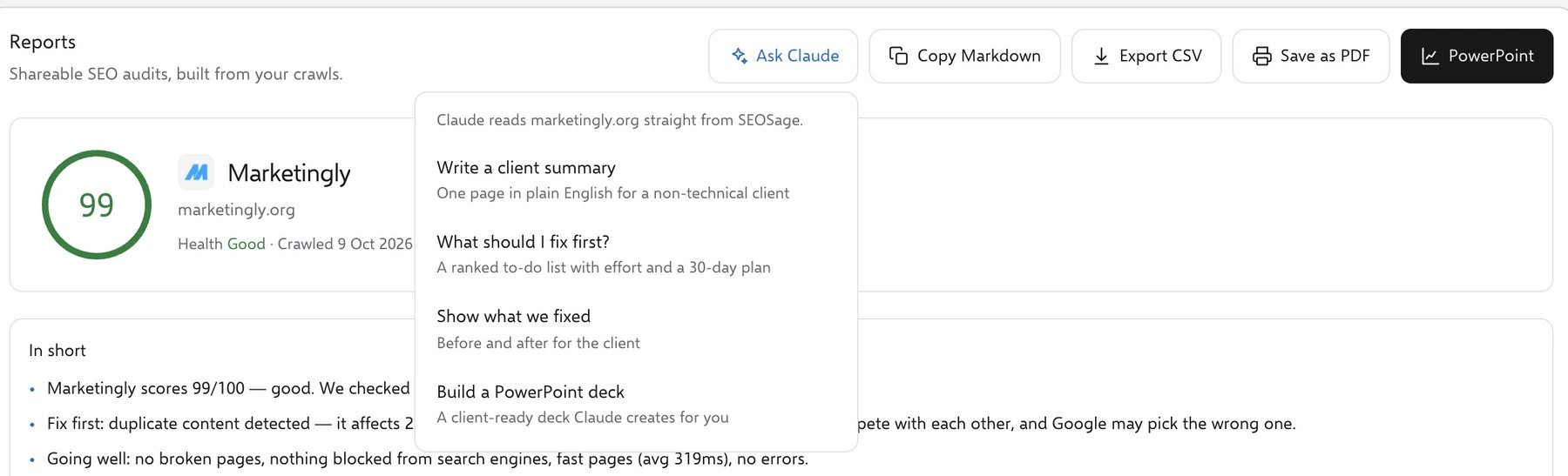
The full list in the sample has six rows, plus a box listing the exact page addresses. In SEOSage, the Ask Claude menu has a “What should I fix first?” option that gives a ranked to-do list with effort and a 30-day plan.
SEOSage’s own Top fixes list ranks by how serious each issue is and how many pages it hits. Check that order against your search data, as in the example, before it goes into the report.
5. A plan for the next 30 days #
A client who gets a list of fixes and no plan often does nothing. Put the same fixes into four weeks. In the example: week 1 is speed, week 2 is findability (FAQ markup and the sitemap), week 3 is small tidy-ups, and week 4 is click rate and a review.
End the page with how you will know it worked, in numbers the client can check: home page under 1 second, zero warnings, two articles earning more clicks for the same views.
6. An appendix with everything else #
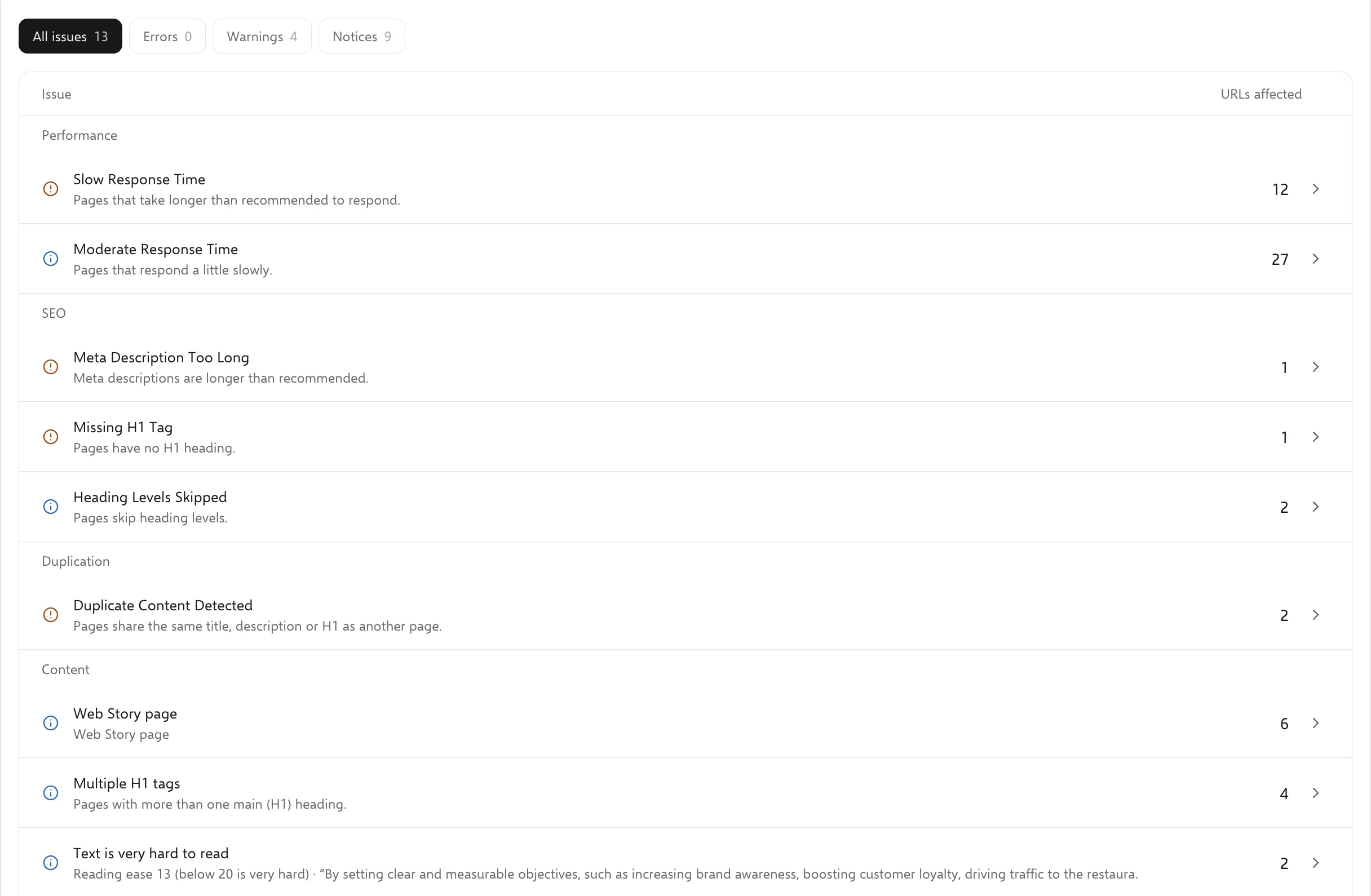
Keep the main report short and put the full list at the back. The example’s last page lists all 13 issue types the crawl found, each with its type, area and number of pages. It is there for the client’s developer or for the curious client. Most readers will never open it, and that is fine.
Five mistakes that make clients stop reading #
- A long list of warnings with no order. The client cannot tell what to do first, so they do nothing.
- Jargon without a translation. “Canonical” and “noindex” need one plain sentence each.
- Numbers with no meaning. Every number needs a “so what”.
- No next step. End every report with what happens next and who does it.
- No comparison. From the second report on, show what changed since the last one.
How to make an SEO report for a client in five steps #
Here is the same process with SEOSage, a desktop app for Mac and Windows. The sample report in this article was made this way.
- Crawl the whole site. SEOSage crawls every page on your own computer, with no page limit. Each client site is its own project.
- Add Google Search Console data. Connect Google Search Console for the client’s site (you need access to it) so the report can show clicks, times shown and positions next to the crawl.
- Rank the fixes. SEOSage lists the issues by type. Put them in order of what helps visits, using the search data, as in part 4.
- Write the summary. Write it yourself, or press Ask Claude on the Reports page to draft a client summary, a fix-first list or a before-and-after update from your real crawl. Read it and edit it before it goes out.
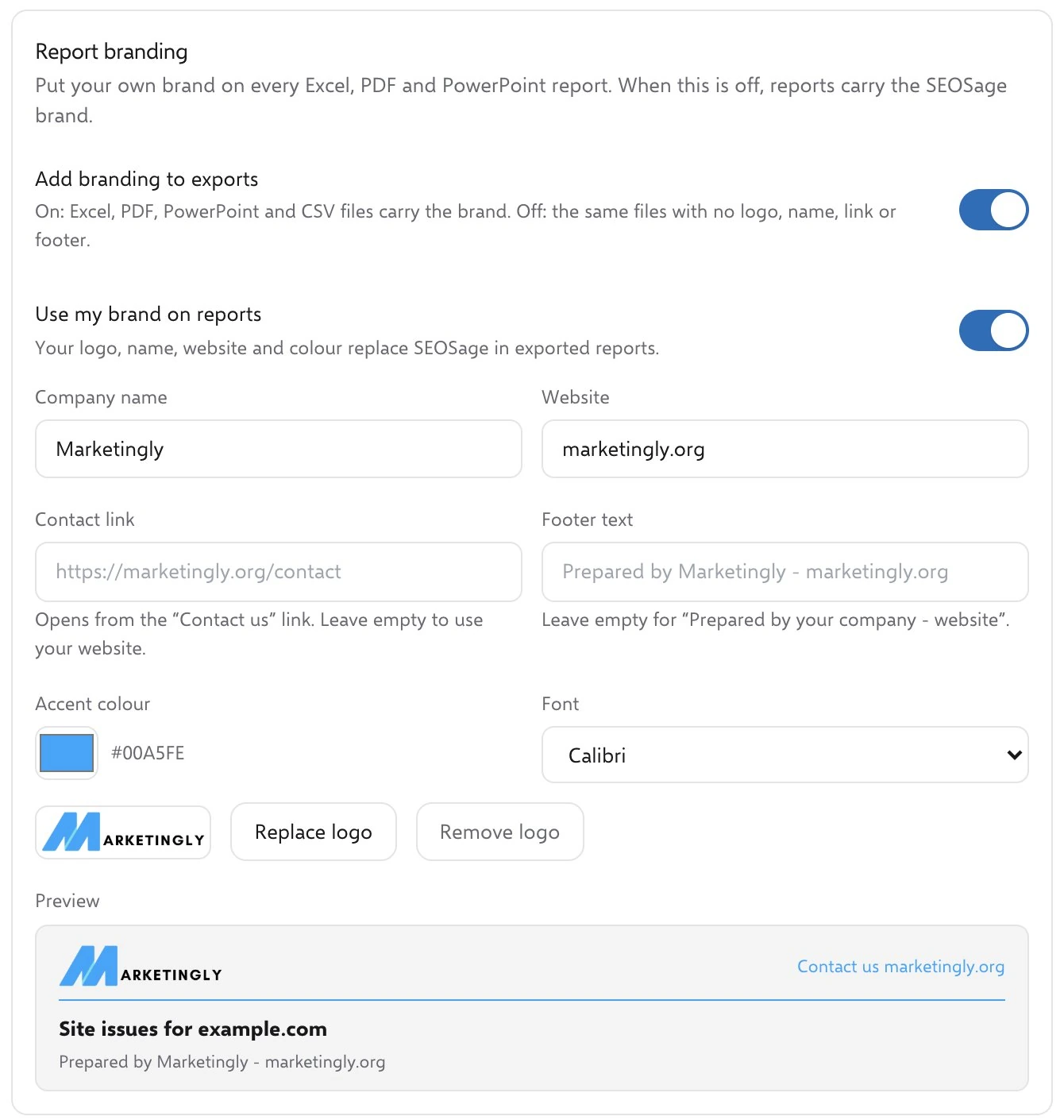
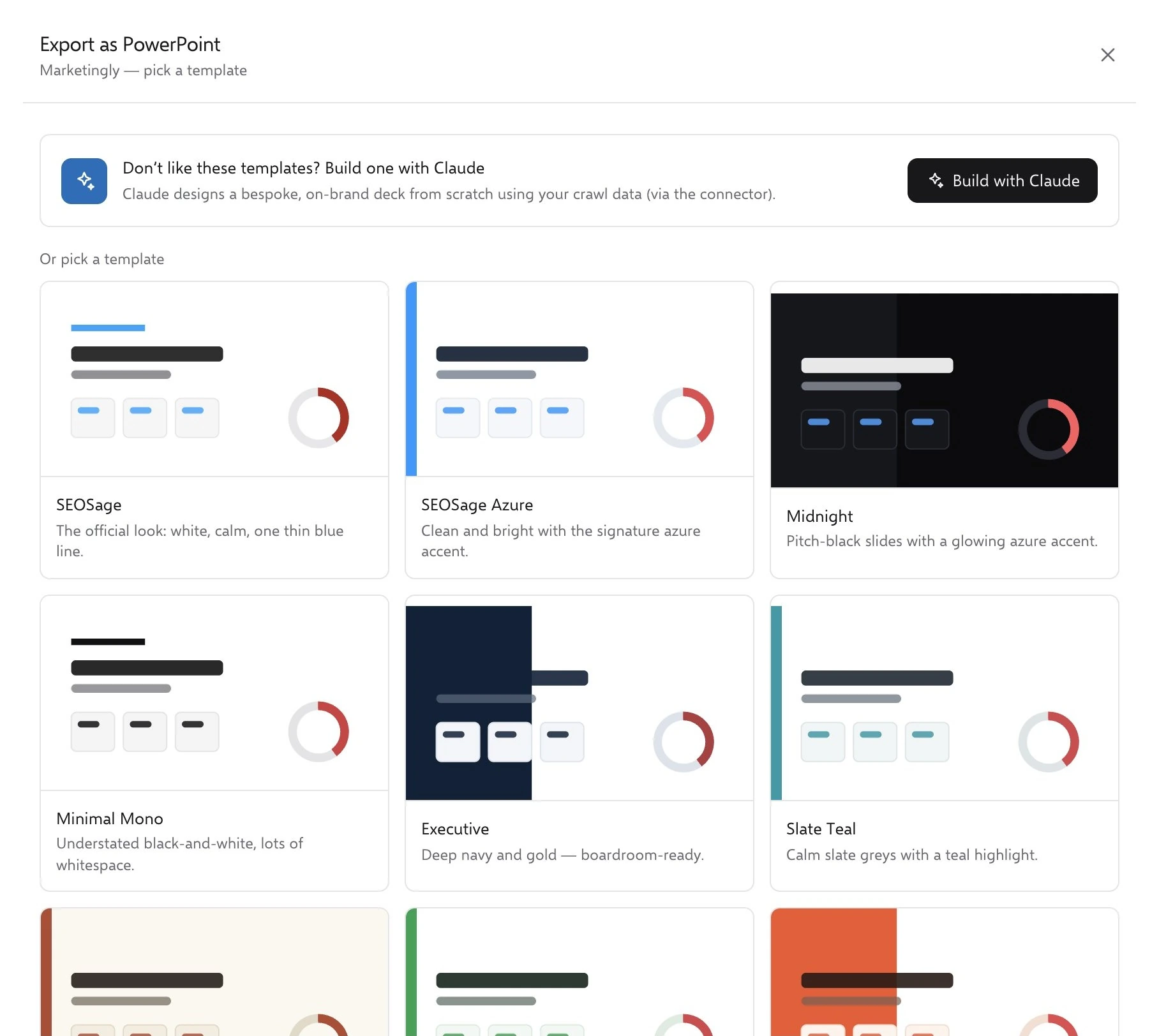
- Add your brand and export. Set your logo, name, colours and font once in Settings. Then export a PDF, a PowerPoint deck, an Excel workbook or a CSV file.
A month later, crawl again and use the compare view to write the progress report.
Where SEOSage fits #
SEOSage is an SEO audit tool that turns a crawl into a client-ready report. It covers steps 1 to 5 above: the crawl, the search data, the issue list, a draft summary and a branded export. Plans start at $9 a month and the free trial lasts 14 days.
It is not a client dashboard. SEOSage has no client login or portal, so you send your client the file. It also has no backlink database or keyword research data. If you need a live dashboard for clients to log in to, it is the wrong tool. If you send reports as files, it is built for that.
Want a spreadsheet instead? Our free SEO audit template has a client report outline you can copy into any document.
FAQ #
What should an SEO client report include? #
At least a summary, the key numbers, what the crawl found, search results from Google, a ranked fix list and a plan for the next 30 days. A full appendix of issues is optional but useful for developers.
How long should an SEO report for a client be? #
Short enough to read in one sitting. The example in this article is six pages including the cover and the appendix. The page most clients read is the short version on page 2.
How often should I send an SEO client report? #
A fuller audit report when a client starts, then a short progress report each month, works well. Pick a rhythm and keep to it.
Can I put my own logo on an SEO client report? #
Yes. In SEOSage you set your company name, logo, colours and font once, and they appear on the PDF, PowerPoint and Excel exports. See the white label SEO audit tool page for what carries your brand.
Do my clients need a login to see the report? #
Not with SEOSage. You send the PDF, PowerPoint, Excel or CSV file. If you want clients to log in to a live dashboard, SEOSage does not offer that.
What is the difference between an SEO audit report and a progress report? #
An audit report says what is wrong with a site and what to fix first. A progress report shows what changed since the last crawl: what was fixed, what is new and what got worse.
Sources #
Recommended #
- White Label SEO Audit Tool: Reports With Your Logo
- Free SEO Audit Template and Report Template (Excel)
- SEO Audit Checklist: 24 Checks and Free Tools to Test Them
- Compare crawls: see what changed since the last audit
- Ecommerce SEO Audit: 20-Step Checklist for Online Stores
- Free SEO Proposal Template (Editable, With Example)